Why Storage Type Matters More Than You Think
When you buy a laptop, the screen and processor get most of the attention. Storage often sits in the fine print. That is a mistake. The difference between an SSD and an HDD shapes how fast your machine feels every time you open apps, save files, or wake from sleep.
This guide explains SSD vs HDD for laptops in plain language. You will learn how each drive works, what changes in daily use, and how to choose without drowning in jargon. The goal is practical clarity for beginners, not a hardware lecture.
What an HDD Actually Does
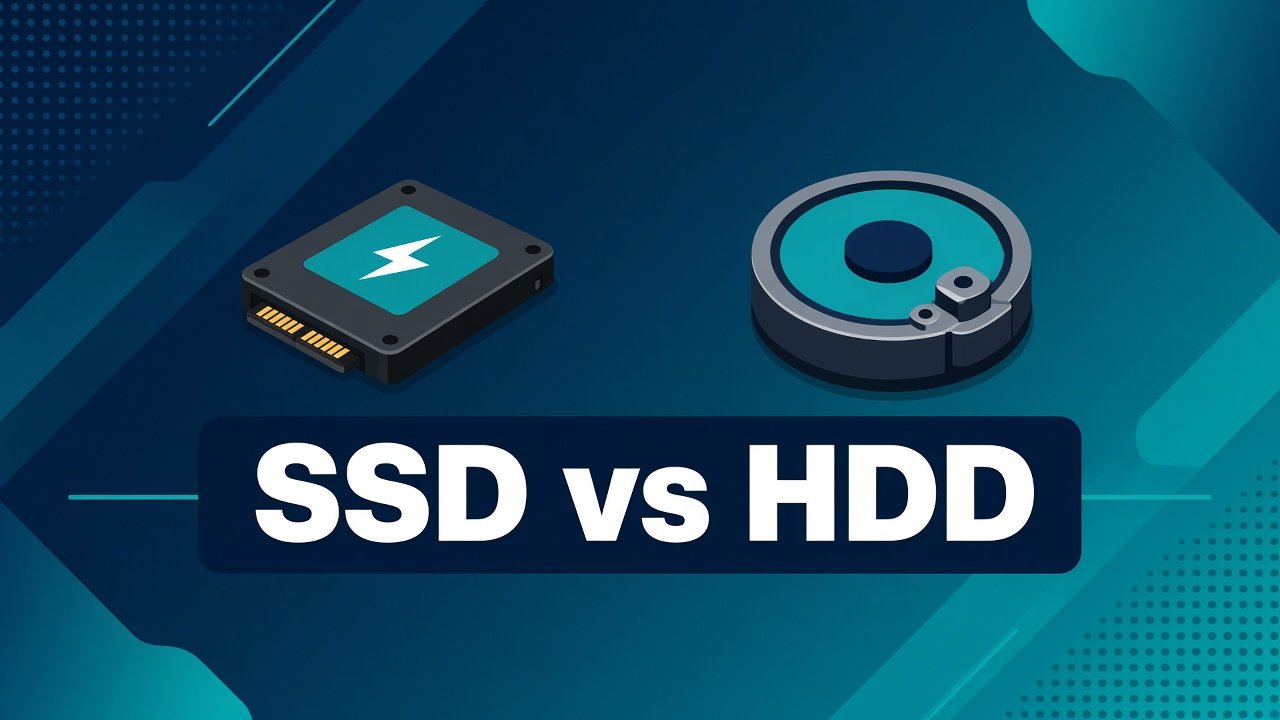
A hard disk drive (HDD) stores data on spinning magnetic platters. A tiny arm moves across those platters to read and write information. The design is older, proven, and still common in budget machines and external backup drives.
Because parts move, speed has physical limits. The drive must wait for the right sector to spin under the head. That delay shows up as pause when you open a large folder, launch a heavy program, or boot after a full shutdown.
HDDs still shine for raw capacity at a low price. If you need several terabytes for video archives or photo libraries and you are not chasing instant response, spinning disks remain useful. Inside a thin laptop, though, they add weight, noise, and heat compared with flash storage.
What an SSD Changes
A solid-state drive (SSD) has no moving parts. It stores data in flash memory chips. Access is electronic, so there is no wait for a platter to spin. That is why SSD vs HDD for laptops is not a close race for everyday responsiveness.
Boot times drop. Apps open with less hesitation. Saving documents and copying media feel snappier. Suspend and resume are smoother because the system can read and write the session state quickly. You also get better resistance to bumps; dropping a bag with an HDD inside is riskier for the drive than for an SSD.
Modern laptops often use NVMe SSDs that connect through a fast internal interface. Even a modest SATA SSD usually feels much faster than a traditional hard drive for interactive work. Capacity per rupee is still higher on HDDs, but prices for SSDs have fallen enough that many entry laptops now ship with solid-state storage as standard.
Day-to-Day Differences You Will Notice
Think about a typical student or office day. You open the browser, a document editor, a messaging app, and maybe a video call. On an HDD, those launches can stack into a sluggish start. On an SSD, the same sequence feels closer to “ready when you are.”
Large file copies highlight the gap. Moving a 4 GB project folder or a semester of lecture recordings finishes sooner on solid-state storage. Searching your drive for a PDF by name also benefits because the system can scan indexes and metadata faster.
Gaming and creative apps amplify the effect. Level loads, asset caches, and project libraries all hit storage. An SSD will not replace a stronger CPU or more RAM, but it removes one common bottleneck that makes mid-range hardware feel older than it is.
Battery life and heat matter on laptops. SSDs typically draw less power during active work and idle more efficiently than spinning drives. Less mechanical work also means quieter operation. Those gains are modest on some models, yet they add up on long study sessions away from a charger.
Capacity, Cost, and Upgrade Paths
A common beginner question is whether to pick a smaller SSD or a larger HDD. For a primary laptop, prioritize an SSD for the system drive. Keep the operating system, apps, and active projects there. If you need bulk archives, add an external HDD or cloud storage rather than forcing the whole machine onto a slow internal disk.
Many laptops let you upgrade storage later. Check whether your model has a spare M.2 slot or a 2.5-inch bay, and confirm the supported drive types in the manual. Cloning tools can move your existing system to a new SSD with careful planning. If you are not comfortable opening the chassis, a local shop can handle the swap; always back up first.
Hybrid setups exist too: a small SSD for Windows and apps plus a larger HDD for media. That arrangement can work in thicker laptops. Ultrabooks often leave room only for one SSD, so choose capacity carefully when you buy.
Reliability Myths and Sensible Care
People sometimes claim SSDs fail suddenly and HDDs fail slowly. Reality is more mixed. Both can fail. HDDs are vulnerable to shock and wear on mechanical parts. SSDs wear as cells are rewritten, but modern drives include wear leveling and over-provisioning that keep consumer usage safe for years under normal loads.
What matters more is backup habit. No drive type replaces a second copy of important files. Use an external drive, another computer, or a reputable cloud service. Keep firmware and the operating system updated so storage controllers and drivers stay stable.
Avoid filling any drive to the absolute brim. Leave free space so the system can manage temporary files and, on SSDs, maintain write performance. Do not defragment an SSD the way older guides recommended for HDDs; modern Windows already handles solid-state drives differently.
How to Decide for Your Next Laptop
If the machine is for browsing, classes, office work, coding practice, or light creative tasks, choose an SSD. The daily time saved and lower frustration outweigh a few extra gigabytes of cheaper spinning storage.
If you edit large video libraries offline and need maximum internal capacity on a tight budget, consider a dual-drive layout where available, or a strong SSD plus external HDD. For travel and thin notebooks, SSD-only is usually the better default.
When you compare product listings, look beyond “512 GB storage.” Confirm whether that capacity is SSD or HDD. A 1 TB HDD can feel slower than a 256 GB SSD for everyday use. Also check RAM and processor; storage speed cannot fix a machine that is starved for memory.
Closing Takeaway
SSD vs HDD for laptops comes down to how you value time, quiet operation, and durability versus cost per gigabyte. For most beginners, an SSD is the clearer choice for the drive that runs Windows and daily apps. Use hard disks where bulk archival storage is the priority, not where responsiveness matters. Learn the labels on the spec sheet, plan backups, and pick the setup that matches how you actually work—not the largest number alone.