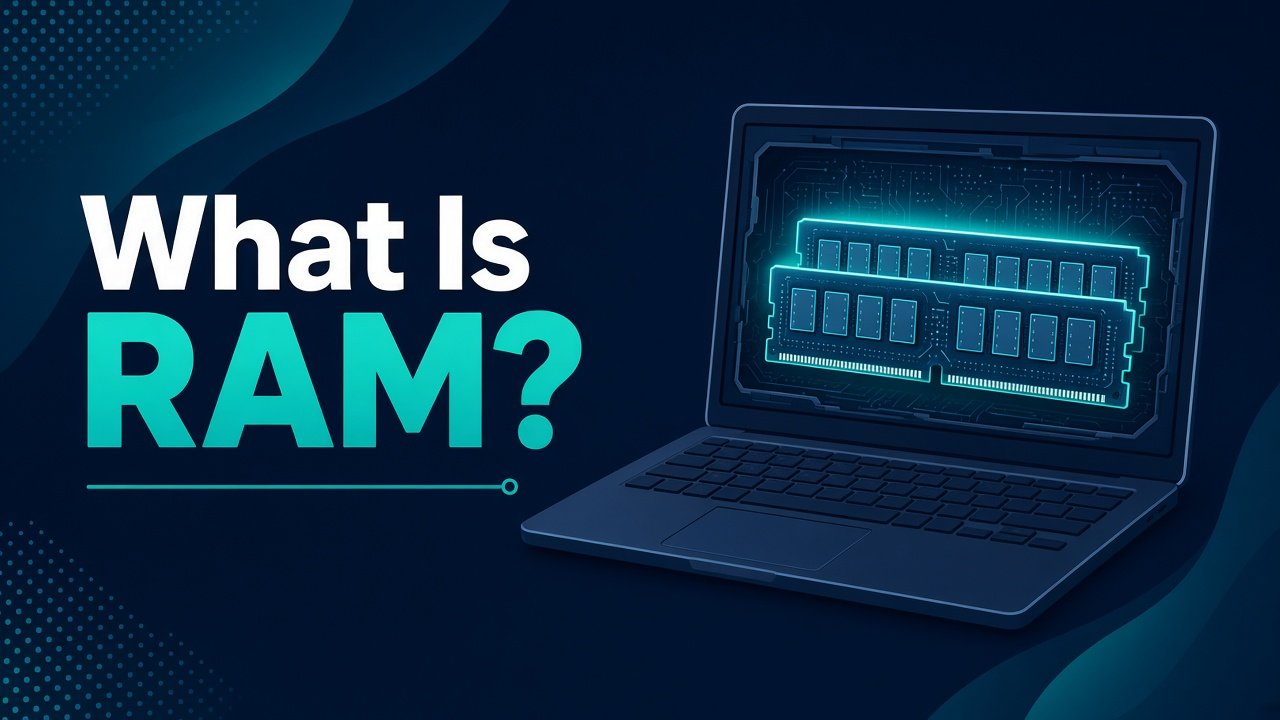
When a laptop feels slow while switching between Chrome, Word, and a video call, people often blame the processor first. Sometimes the real limit is RAM. RAM is short for Random Access Memory. It is the fast working space your laptop uses for apps that are open right now.
This guide explains RAM in plain language: what it does, how much beginners usually need in 2026, and how to check your own laptop before you buy more.
RAM Is Working Space, Not Long-Term Storage
Think of storage (SSD or HDD) as a cupboard where files sleep. Think of RAM as the desk where you spread papers while you work.
When you open a browser with many tabs, the laptop loads those pages into RAM. When you edit a document, the draft you are changing also sits in RAM. When RAM fills up, Windows starts using slower storage as overflow. That is when switching apps feels sticky and fans get louder.
Closing unused apps frees RAM. Restarting the laptop clears temporary working space. Adding more RAM (when the laptop allows it) gives you a bigger desk.
What RAM Does During a Normal Day
A simple student or office day might include:
- Windows itself
- a browser with classroom tabs
- a document editor
- music or a short video
- chat apps
Each of those needs a slice of RAM. One heavy browser session can use more memory than people expect. That is why a laptop with a decent processor can still feel slow if RAM is low.
Gaming, video editing, and large design files need even more. For beginners who mainly browse, write, and watch lectures, the question is usually “enough for multitasking,” not “maximum for editing movies.”
How Much RAM Do Beginners Need?
Rough beginner ranges for Windows laptops in everyday use:
- 4 GB: often struggles with modern Windows plus several browser tabs
- 8 GB: workable for light study and office work if you manage tabs
- 16 GB: comfortable for many tabs, calls, and light creative work
- 32 GB+: useful for heavy editing, virtual machines, or serious multitasking
These are practical ranges, not marketing slogans. An 8 GB laptop can feel fine if you close tabs. A 16 GB laptop can feel slow if storage is almost full or the drive is an old hard disk.
RAM is only one part of speed. Storage type (SSD vs HDD) and background apps matter too.
How to Check RAM on Windows 11
You can see installed memory without opening the laptop:
- Open Settings
- Go to System
- Open About
- Look for Installed RAM
Task Manager also helps. Press Ctrl + Shift + Esc, open the Performance tab, and select Memory. If memory stays near 90–100% while you do normal work, more RAM or fewer open apps may help.
Also check whether your laptop can add RAM. Some thin models solder memory to the board. The manufacturer support page for your exact model will say if slots are upgradeable.
RAM Speed and Dual Channel, Without the Confusion
You will see numbers like 3200 MHz or DDR4/DDR5. Faster RAM can help a little, but for beginners the capacity jump from 8 GB to 16 GB usually matters more than a small speed difference.
Dual channel means two matching modules working together. On upgradeable laptops, two 8 GB sticks often perform better than one 16 GB stick. If you are not opening the machine yourself, a trusted technician can confirm the right modules.
Do not buy random RAM kits from unknown listings. Wrong type or voltage can refuse to boot.
Signs Low RAM Is Your Problem
RAM may be the bottleneck when:
- apps freeze while switching
- Task Manager Memory is constantly high
- the disk activity spikes when you change windows
- the laptop improves a lot after a restart, then slows again as tabs pile up
If Memory use stays low but the disk is always busy, storage or background updates may be the bigger issue. If the CPU is pegged at 100%, a heavy process may be the cause. Check Task Manager before spending money.
Can You Upgrade, or Should You Buy a New Laptop?
Upgradeable RAM is a good fix when:
- the model supports it
- you are otherwise happy with screen and battery
- storage is already an SSD
A new laptop may make more sense when:
- RAM is soldered and stuck at 8 GB
- the laptop also has a slow hard disk and weak battery
- repair cost approaches the price of a better used machine
Before buying, write down your model name from Settings → System → About and check the official specs.
Practical Tips Without Buying Anything Yet
- Keep browser tabs intentional
- Close Meet/Teams fully after class
- Uninstall startup apps you never use
- Prefer an SSD if you are still on HDD
- Restart a few times a week during heavy study weeks
These steps do not replace RAM when you are truly short, but they stop wasted memory.
Closing Thought
RAM is the laptop’s short-term workspace. Beginners should learn how much they have, watch Memory in Task Manager during real work, and only then decide on an upgrade. More RAM helps multitasking, but a clean SSD and fewer background apps often make the day feel faster too.
Buying Tip Before You Pay Extra
If a shop offers an upgrade from 8 GB to 16 GB for a modest fee on a new laptop, that upgrade is often worth more than a slightly faster processor you will not notice in classwork. Ask whether the RAM is upgradeable later. A machine that starts at 16 GB and uses an SSD will age more kindly for browser-heavy study than a cheaper model stuck on 8 GB with a hard disk.
When comparing used laptops, verify RAM in Settings in front of you, not only on a sticker. Stickers can be wrong after past upgrades or parts swaps.