Passing notes used to mean paper. Passing project ZIPs, lecture recordings, and APK builds between Android phones often still means a messy cable, a random USB stick, or uploading everything to Drive just to download it again two metres away. Android’s Quick Share (you may still hear older names like Nearby Share on some screens) is meant for that short-range handoff. This explainer covers what it is, how to use it, what usually goes wrong on Indian campus Wi‑Fi, and when a cable or cloud link is still smarter.
What Quick Share actually is
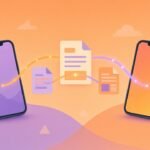
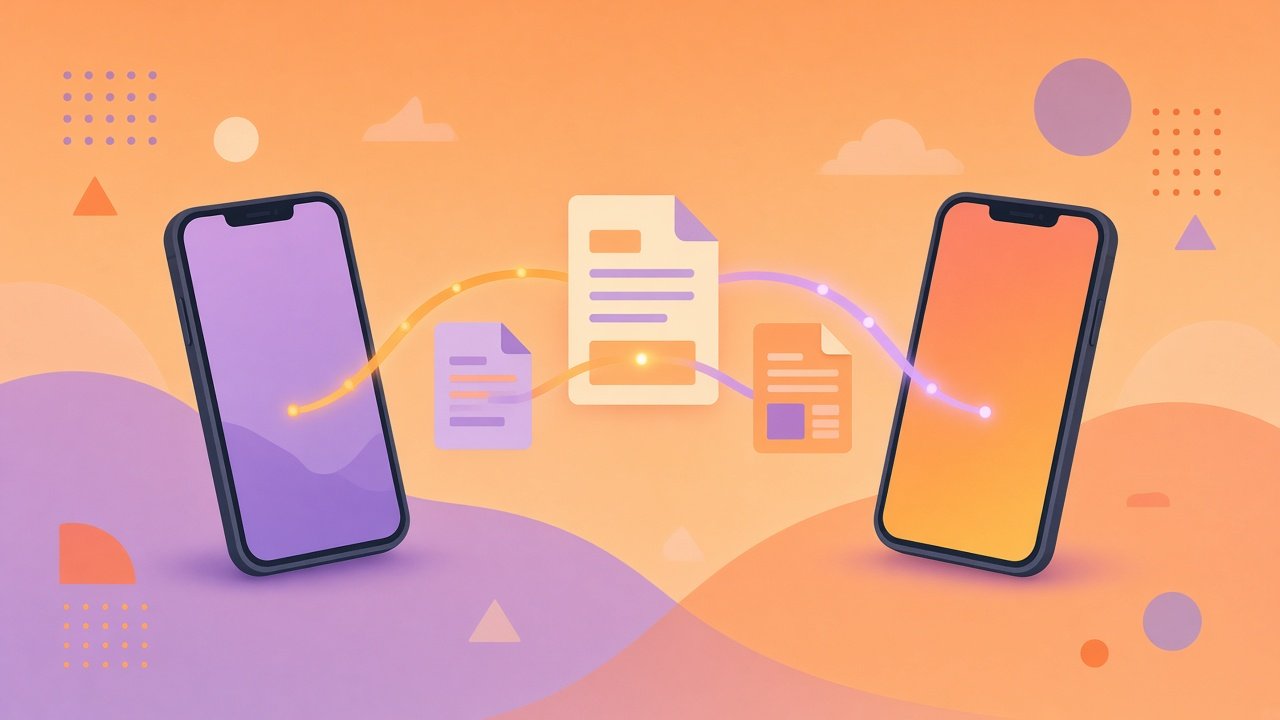
Quick Share lets two nearby Android devices discover each other and send files over a mix of Bluetooth for discovery and a faster local radio path (often Wi‑Fi Direct–style) for the payload. You are not emailing the file through the internet for the whole transfer. Once both sides accept, the phones talk locally.
That design matters in a hostel with weak data or a classroom where mobile data is throttled. A 200 MB video can move without eating your monthly plan—if both devices cooperate and the environment is not drowning in radio noise.
Quick Share is built into recent Android versions and many OEM skins. Exact menu names shift on Samsung, Xiaomi, Vivo, and Pixel, but the idea stays: share sheet → Quick Share (or Nearby Share) → pick a person or device → accept on the other phone.
When it beats cables and cloud
Use Quick Share when:
- Both people have Android phones within a few metres
- The file is large enough that uploading twice feels silly
- You do not want to plug into someone’s laptop USB port in a crowded lab
- You need a one-off send, not a permanent shared folder
Prefer a cable or cloud when:
- One device is an iPhone and the other is Android (use a cross-platform tool or Drive instead)
- You need the same folder available tomorrow on three devices
- Campus radio congestion makes discovery flaky every afternoon
- You are sending sensitive documents and want an encrypted cloud share you control with a password and expiry
Quick Share is a convenience feature, not a full backup system.
How to send a file, step by step
Menus differ by brand, but this flow works on most phones:
- Open Files, Photos, or the app that holds what you want to send.
- Select the item(s) → tap Share.
- Choose Quick Share (or Nearby Share if that label still appears).
- Make sure Bluetooth and Location are on if Android asks—discovery often depends on them even when the bulk transfer uses Wi‑Fi.
- Wait for nearby devices to appear. Tap the recipient.
- On the other phone, accept the incoming transfer prompt.
Keep both screens awake until the progress finishes. Locking the phone mid-transfer is a classic way to stall a half-sent ZIP.
To receive more easily, open Quick Share settings and set visibility to contacts or everyone for a few minutes while you collect files from classmates, then switch back to a stricter option.
Visibility, contacts, and awkward hallway moments
Visibility options usually include something like hidden, contacts only, or everyone nearby. “Everyone” is handy for a group project huddle and awkward if you leave it on in a packed metro. Prefer contacts for daily use; widen visibility only when you are actively sending.
Your phone may show a first name and model. Confirm you are tapping the right classmate before sending internal marksheets or personal IDs. Wrong-target mistakes happen when three “Redmi Note” devices light up at once.
Common failures and calm fixes
Devices do not appear Toggle Bluetooth off and on. Confirm Location is enabled for the transfer session. Move closer—walls and crowded 2.4 GHz bands hurt discovery. Restart the share sheet once.
Transfer starts then dies Disable Battery Saver temporarily. Keep screens on. Try one large file instead of fifty tiny ones. If both phones are on different OEM skins with aggressive “optimisation,” whitelist Quick Share or Nearby Share in battery settings.
It works on mobile data zones but fails in a specific lab Some networks and dense Wi‑Fi environments interfere with local Wi‑Fi paths. Step into a corridor, or fall back to a USB-C cable / OTG for that room.
Prompt never shows on the receiver Ask them to open Quick Share settings and set receiving to on. Check Do Not Disturb is not swallowing the notification. Update system apps via Play Store when a share feature looks half-broken after an OS upgrade.
Mixed Android versions Very old Android builds may lack the feature or use only the older Nearby Share branding. A cheap cable still wins over twenty minutes of troubleshooting before a viva.
Privacy and sense checks
You control acceptance. Do not auto-accept unknown senders. After a public session, set visibility back to contacts or hidden. Delete files you only needed temporarily—Quick Share does not replace cleaning Downloads.
For passwords, mark sheets, or ID scans, pause. A private Drive link with access limited to one email, or a cable to your own laptop, may be the lower-drama choice. Convenience is not the same as good judgment.
Quick habits that make it reliable
- Update Google Play system updates and the Files app when prompted
- Agree on “Quick Share in two minutes” in the group chat so both people enable visibility together
- Name your phone something recognisable in Bluetooth settings (not “Android”) so friends pick correctly
- Keep a short USB-C cable in your bag for the days radio refuses to cooperate
Bottom line
Android Quick Share is the cable-free option that finally feels normal for classmate handoffs: photos, PDFs, project archives, and lecture clips without burning data on a round trip through the cloud. Learn the share-sheet path, keep visibility intentional, and treat flaky discovery as an environment problem—not a personal failing. When the hallway is too noisy for radios, the humble cable still graduates with you.