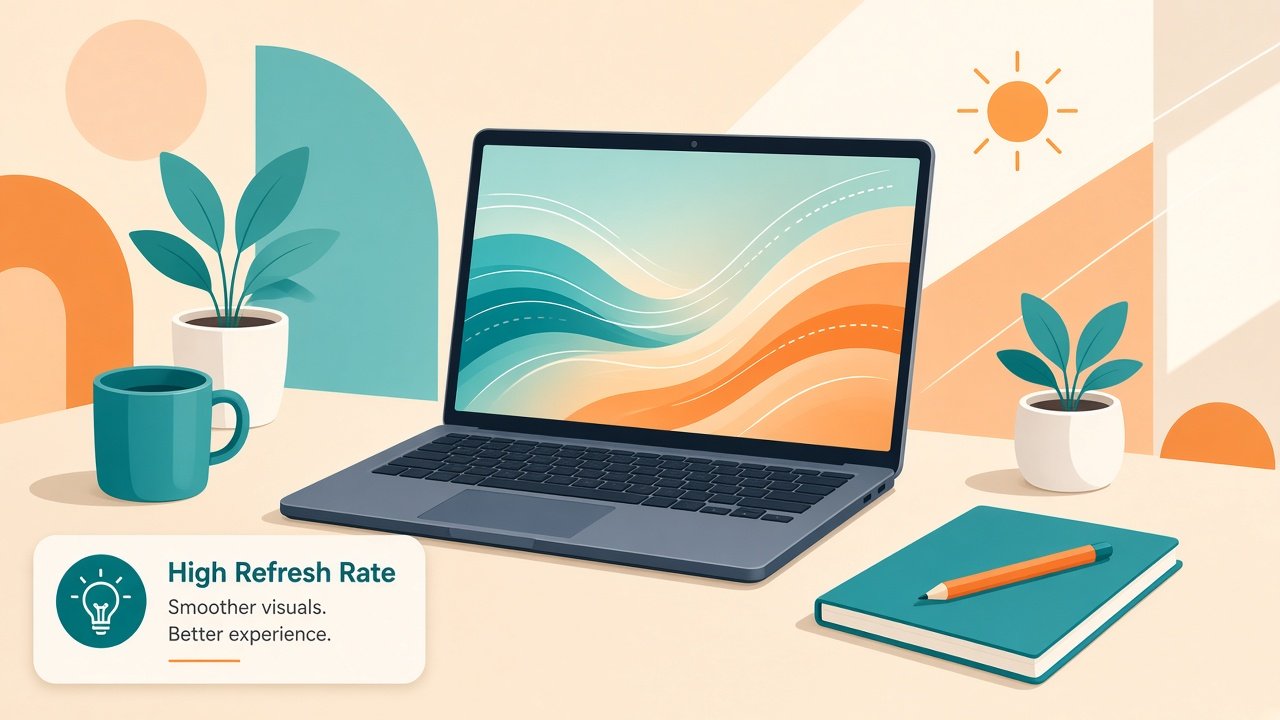
Laptop ads in India love flashing “120Hz” as if every student needs it for coding and notes. Refresh rate does change how motion feels, but it is only one part of a screen. Brightness, panel type, resolution, battery, and price often matter more for campus life.
This comparison explains what 60Hz and 120Hz mean on Windows laptops, how you notice the difference in real student work, and when spending extra on a higher refresh panel is actually worth it.
What refresh rate actually means
Refresh rate is how many times per second the display updates the image. A 60Hz panel refreshes sixty times each second. A 120Hz panel refreshes twice as often. The unit is Hertz (Hz).
You feel it most when something moves: scrolling a long PDF, dragging windows, watching gameplay, or flicking through browser tabs. Static text on a Word document does not magically become “better” just because the panel can refresh faster.
Do not confuse refresh rate with resolution (FHD, QHD) or with OLED. A dull 120Hz panel can still look washed out outdoors. A bright 60Hz IPS screen can feel calmer for long reading sessions than a flashy but dim high-refresh cousin.
How students actually notice 60Hz vs 120Hz
On everyday coursework the difference is subtle for many people:
- Scrolling Chrome with many tabs feels a bit smoother at 120Hz
- Moving windows and the mouse pointer looks more fluid
- Touchpad scrolling in PDF readers feels less “steppy”
- Games and casual esports titles look clearer in motion
For typing notes in VS Code or LibreOffice, the gap shrinks. Your eyes spend more time on stationary text than on motion. Some students swear they can never go back after 120Hz. Others try both in a store and shrug.
If you can, open the same PDF and browser on both panels in a showroom. Scroll slowly and quickly. Judge comfort, not the sticker on the bezel.
Battery and heat on student laptops
Higher refresh rates ask the display and graphics pipeline to work more often. On thin Windows laptops with integrated graphics, 120Hz can shorten battery life compared with the same chassis locked to 60Hz – especially with brightness up and a browser full of LMS tabs.
Many modern machines let you switch modes: 60Hz on battery, 120Hz on charger. That compromise is useful for hostel days when outlets are scarce between classes. Check the display settings in Windows 11: Settings -> System -> Display -> Advanced display. Confirm the refresh rate options for your panel.
Heat follows a similar pattern. Continuous 120Hz during mixed work can nudge fans earlier on entry-level machines. Pure document work may barely show a difference. Mixed video calls, coding, and browser research make the gap easier to notice in reviews of the exact model.
Campus workloads that care – and ones that do not
Most Indian college days do not demand 120Hz:
- Lectures, notes, and assignment PDFs
- Online exams and LMS portals
- VS Code, Python labs, and documentation
- Light CapCut-style project clips and slide decks
120Hz helps more when you:
- Play competitive or casual games after classes
- Edit video and scrub timelines often
- Prefer buttery scrolling and notice stutter easily
- Use the laptop as a secondary “feel” upgrade while RAM and SSD stay strong
It helps less when the laptop already fights 8 GB RAM or a nearly full drive. Smooth scrolling will not fix Chrome thrashing. Fix the bottleneck first.
60Hz is enough for most fresher budgets
Choose 60Hz confidently when:
- The money difference buys 16 GB RAM or a bigger SSD instead
- Battery life is your top priority for long lab days
- You mainly write, code, read, and attend online classes
- The 60Hz option has better brightness or anti-glare than the 120Hz sibling
- You already use an external monitor at home for long sessions
A clear 60Hz IPS panel with comfortable brightness beats a dim 120Hz panel that forces you to sit in the shade of the hostel corridor.
When 120Hz is worth the premium
Consider 120Hz when:
- The price gap over 60Hz is modest for the same CPU, RAM, and storage
- Battery reviews for that exact 120Hz SKU still look honest
- You game regularly or care a lot about smooth scrolling
- Windows lets you drop to 60Hz on battery when you need endurance
- You keep the laptop for several years and want a nicer everyday feel
If the 120Hz model forces you down to 8 GB RAM to hit a festival sale price, walk away. Smoothness does not replace memory headroom during exam week.
India buy tips without the marketing fog
Festival listings love “120Hz gaming feel” on machines that are still basic student boxes. Compare full configs:
- Is RAM 16 GB or upgradeable?
- Is the SSD 512 GB or more?
- Does the 120Hz model share the same battery capacity?
- Can you set 60Hz manually for travel days?
- Is the panel bright enough for daytime classrooms?
Older 60Hz FHD laptops remain excellent for coding and submissions. Do not feel behind classmates with high-refresh stickers. Project deadlines care more than motion blur charts.
External monitors change the math too. If you already dock at home to an FHD 60Hz display, the laptop panel matters mainly for lectures and travel. Buy for the screen you stare at most.
Quick recommendation
Default to 60Hz for most BCA, BTech, and general degree workloads in India – especially under mid-range budgets. Pick 120Hz when the rest of the laptop stays strong, battery reviews stay honest, and you value smoother motion for games or daily scrolling.
Balance refresh rate with RAM, storage, keyboard comfort, and real battery life. Choose the panel that supports late submissions – not the one that only wins a spec comparison.
Bottom line
60Hz remains the practical student standard. 120Hz is a pleasant upgrade when it does not steal budget from RAM, storage, or battery. Understand what you will actually feel on campus, ignore empty “gaming” labels on thin office chassis, and match the refresh rate to how you study and play. Reliable and bright beats “more Hertz” every semester.