Phone notifications during study hours are not just annoying—they pull your attention into group chats, shopping apps, and random reels before you finish one page of notes. Android Focus mode (and related focus or digital wellbeing tools) is built to quiet the noise without turning your phone into a brick.
This explainer covers what Focus mode does, how it differs from Do Not Disturb, how to set it up on common Android phones, and how to keep family or hostel urgencies from getting buried.
What Focus mode actually is
Exact names vary by brand. Pixel and stock-like Android lean on Digital Wellbeing → Focus mode. Samsung folds related ideas into Modes and Routines. Xiaomi, Realme, OnePlus, and others often ship Focus mode or app timers under Digital Wellbeing, Zen mode, or Focus settings. The idea is shared: pause the apps that steal your hour.
Focus mode vs Do Not Disturb
Students mix these up. They solve different problems.
Do Not Disturb (DND) mainly silences sounds and pop-ups. Calls and messages can still arrive silently unless you set exceptions. Apps remain fully usable if you open them yourself.
Focus mode targets the apps you mark as distracting. Even if you open Instagram out of habit, Focus mode can block or pause it until you end the session or take an allowed break.
Use them together when you need quiet and fewer temptations: DND for silence during a mock test, Focus mode so you cannot “just check” a ree
- Open Settings and search for Digital Wellbeing or Focus mode.
- Choose Focus mode.
- Select the distracting apps—social, games, shopping, short video apps.
- Start Focus mode now, or schedule it for study blocks.
- Optionally set a break length if your phone offers Take a break.
Samsung users may create a study Mode with allowed apps and notification filters under Modes and Routines. That can feel more powerful than stock Focus mode because you define what is allowed rather than only what is blocked.
If you cannot find Focus mode, search Settings for “focus”, “digital wellbeing”, or “app timers”. Some OEMs hide it under Special access or Digital balance.
What to pause—and what to leave alone
Pause the apps that hijack attention:
- Short video and social feeds
- Casual games
- Shopping and deal apps
- News apps you doomscroll during breaks that never end
WhatsApp is the hard case on Indian campuses. Group chats explode during project week. You can pause WhatsApp in Focus mode and still allow calls through DND exceptions, or leave WhatsApp out of Focus mode but mute noisy groups. Pick the rule you will actually keep.
Keeping real urgencies visible
Focus mode fails when parents cannot reach you or a lab partner needs a file. Plan exceptions before the session:
- Allow calls from starred contacts in DND
- Keep Phone and Messages outside Focus mode if that is your family channel
- Pin one “urgent only” group unmuted; mute the rest
- Tell close contacts your study window so they SMS instead of calling five times
If your OEM Mode supports allowed apps, whitelist dialer, Messages, and your notes stack. Everything else waits.
For hostel emergencies—water cooler fights aside—calls matter more than story replies. Design for calls first.
Schedules that fit college days
Start with 45–90 minutes. Use Take a break if your phone offers five or fifteen minutes to stretch and reply. Then resume. Endless “breaks” defeat the feature.
Combine with a simple timer or calendar reminder so you know when the block ends. Focus mode is a fence, not a full productivity system.
Limits and honest frustrations
Focus mode will not:
- Stop browser temptation if Chrome stays allowed and you open Instagram Web
- Fix a chaotic timetable by itself
- Work the same on every Android skin
- Replace turning the phone face down in an exam hall when rules require it
Some apps resist pausing. Some skins let you override with enough taps that the friction fades. If you keep unlocking the same distraction, remove it from the home screen or log out for exam week.
App timers are a softer cousin: daily limits on social apps without a full Focus session. Use timers for casual evenings and Focus mode for deliberate study blocks.
A practical starter setup
Adjust the list. The goal is fewer regretful unlocks, not a perfect digital monastery.
Bottom line
Android Focus mode pauses the apps that steal study time while leaving room for real calls and campus tools. Pair it with Do Not Disturb when you need silence, whitelist what truly matters, and schedule short blocks you can finish. Quiet the feed; keep the urgencies. That balance is what makes Focus mode useful for Indian college weeks—not a total lockout you abandon on day two.
Try this for one week:
- Add social, games, and shopping to Focus mode.
- Keep calls, SMS, notes, PDF, and LMS available.
- Schedule Focus for your two hardest study windows.
- Pair with DND during mock tests.
- Review on Sunday: which apps still leaked your attention?
A rigid all-day Focus mode usually breaks. Lighter rhythms stick:
- Morning revision block before classes
- Library or self-study window after lunch
- Night review without shopping apps
- Weekend deeper session with a longer Focus stretch
Leave alone the tools you need mid-study:
- Notes, PDF readers, and calculator
- College LMS or email if submissions land there
- Maps and UPI if you move between classes
- Phone dialer and Messages for family
How to turn it on (typical path)
On phones with Digital Wellbeing:
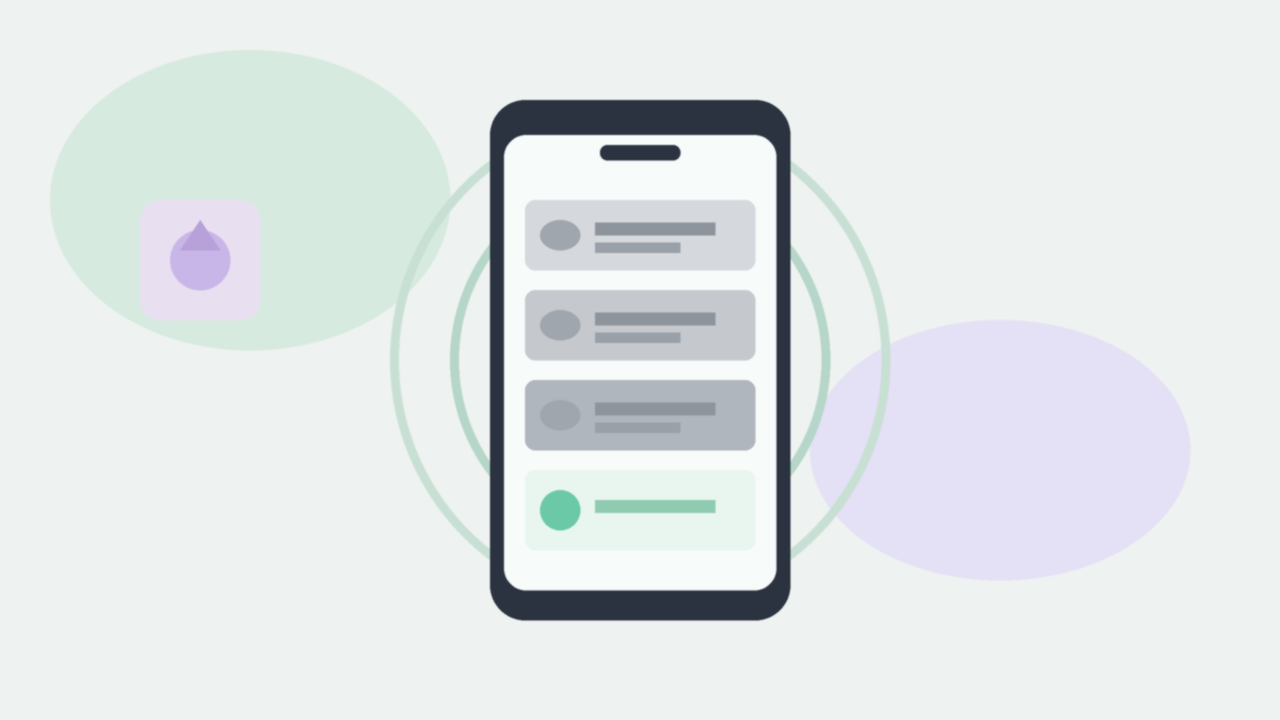
Focus mode is a Digital Wellbeing feature on many Android phones. When it is on, selected distracting apps pause. Their icons may grey out, and notifications from those apps wait until you turn Focus mode off or take a short break.
It is not the same as deleting apps. Your messages stay in the app. You are choosing a temporary fence around games, social feeds, and shopping while you revise.