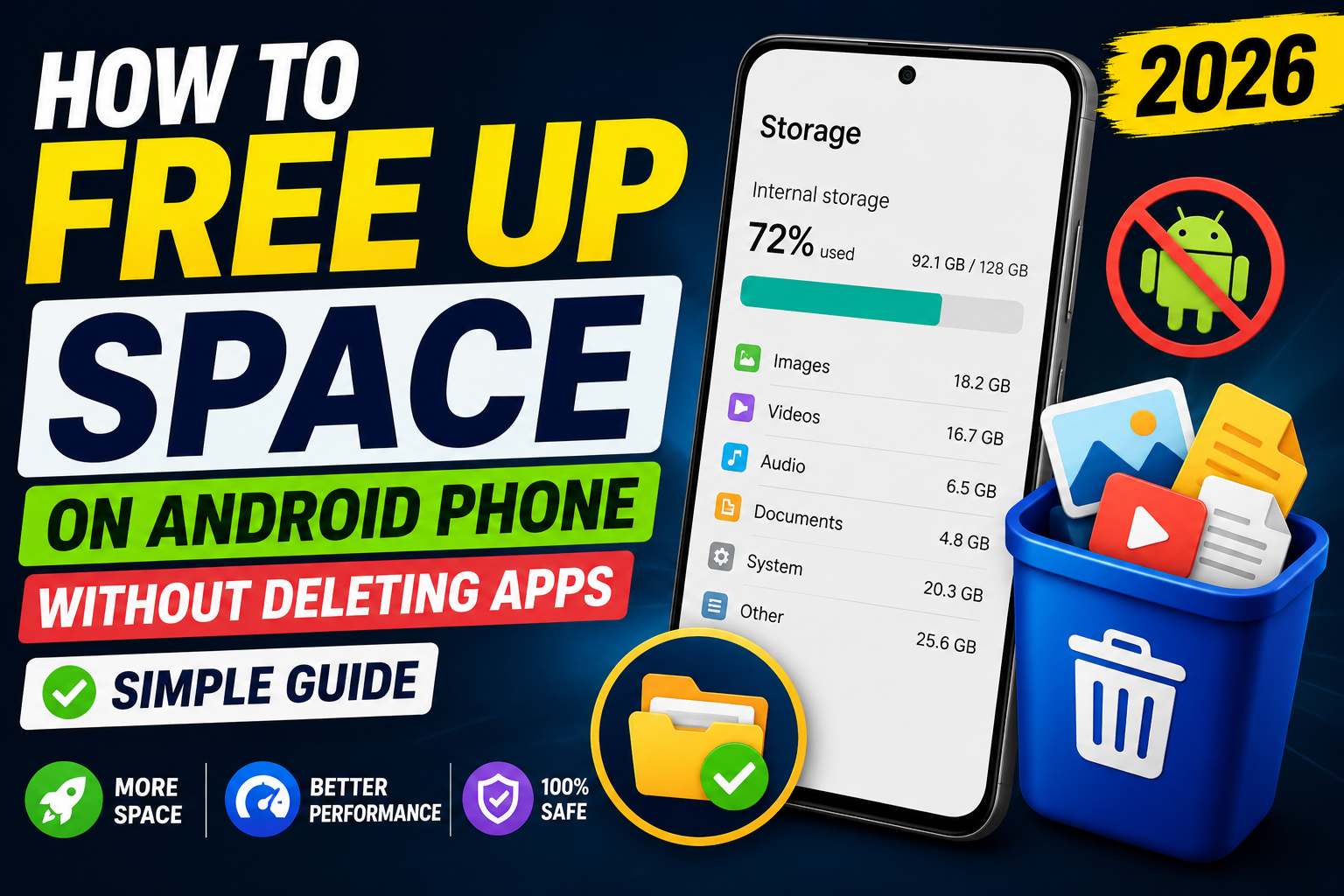
A lot of people think that the only way to free up space on an Android phone is by uninstalling apps. But that’s not true. You can actually free up several GBs of space without removing a single app from your phone.
In this guide, I’ll show you practical methods that actually work. I’ve personally used these methods many times and helped others do the same. These steps are safe and won’t delete your important data or apps.
First, Check How Much Space is Being Used
Before cleaning anything, it’s better to know where your storage is going.
- Open Settings
- Tap on Storage (on some phones it is under Battery and device care)
- You will see a breakdown like Apps, Images, Videos, Documents, Audio, and System
This will give you a clear idea of what is taking the most space.
1. Clear App Cache (Safest and Most Effective Method)
Almost every app stores temporary files called cache. Over time, this cache becomes heavy and eats a lot of storage. The good thing is that clearing cache does not delete your app data, login, or settings.
How to clear cache:
- Go to Settings → Apps
- Tap on See all apps
- Sort the apps by size if possible
- Open any heavy app (Chrome, Instagram, YouTube, WhatsApp, Facebook, TikTok, etc.)
- Tap Storage or Storage & cache
- Tap Clear cache
Do this for the top 8–10 biggest apps. You can easily free 2 to 5 GB just by doing this.
Important: Never tap on “Clear storage” or “Clear data” unless you want to reset the app completely.
2. Use Files by Google Clean Feature
Most Android phones come with Files by Google app. If you don’t have it, you can install it from Play Store. This tool is very useful.
Steps:
- Open Files by Google
- Tap on the Clean tab at the bottom
- It will show suggestions like:
- Junk files
- Old screenshots
- Duplicate files
- Large files
- Downloaded files
- Review each category and clean what you don’t need
This alone can free up a good amount of space without touching your apps.
3. Clean Downloads Folder and Screenshots
Many people forget about the Downloads folder and Screenshots album. These two places usually hold a lot of unnecessary files.
What to do:
- Open Files by Google or your phone’s File Manager
- Go to Downloads and delete old APKs, PDFs, images, and videos you no longer need
- Open Gallery or Google Photos → Screenshots album → Delete old screenshots
- Also empty the Trash or Recycle Bin after deleting (files stay there for 30 days and still take space)
4. Free Space from Google Photos (Without Losing Photos)
If you have already backed up your photos and videos to Google Photos, you can safely remove the local copies from your phone.
Steps:
- Open Google Photos
- Make sure Backup is turned on
- Tap your profile picture
- Select Free up space on this device
- Confirm the action
This method can free several GBs if you have a large photo library, and your photos will still remain safe in Google Photos.
5. Clear Media from WhatsApp and Other Messaging Apps
WhatsApp, Telegram, and similar apps store a lot of received images, videos, and documents.
For WhatsApp:
- Open WhatsApp
- Go to Settings → Storage and data → Manage storage
- You can see large files and chats taking space
- Delete unnecessary media from here
You can also go to the WhatsApp folder in Files app and clean old media folders carefully.
6. Clear Browser Cache and Temporary Files
Browsers like Chrome also store a lot of temporary data.
- Open Chrome
- Tap the three dots → History → Clear browsing data
- Select Cached images and files
- Choose time range (All time if needed) and clear
This is safe and does not log you out of websites if you only clear cache.
Extra Tips to Keep Storage Free Longer
- Turn on Storage Sense or auto-cleanup features if your phone has them
- Regularly clear cache of social media and video apps
- Avoid downloading unnecessary files
- Move important large files to Google Drive or computer when possible
Final Thoughts
You don’t always need to delete apps to free up space. By clearing cache, cleaning downloads, removing screenshots, managing WhatsApp media, and using Google Photos free-up feature, most people can easily free 4 to 10 GB of space.
Start with clearing app cache and using Files by Google Clean option. These two steps alone give the best results in minimum time.
next article :- click here
About the Author Rohit Srivastav is a BCA graduate from Azamgarh, Uttar Pradesh (276001). He writes simple and practical technology guides to help everyday users solve common computer and smartphone problems.
Disclaimer: The methods shared in this article are based on standard Android features. Results may vary depending on your phone model and Android version. Always double-check before deleting any files.