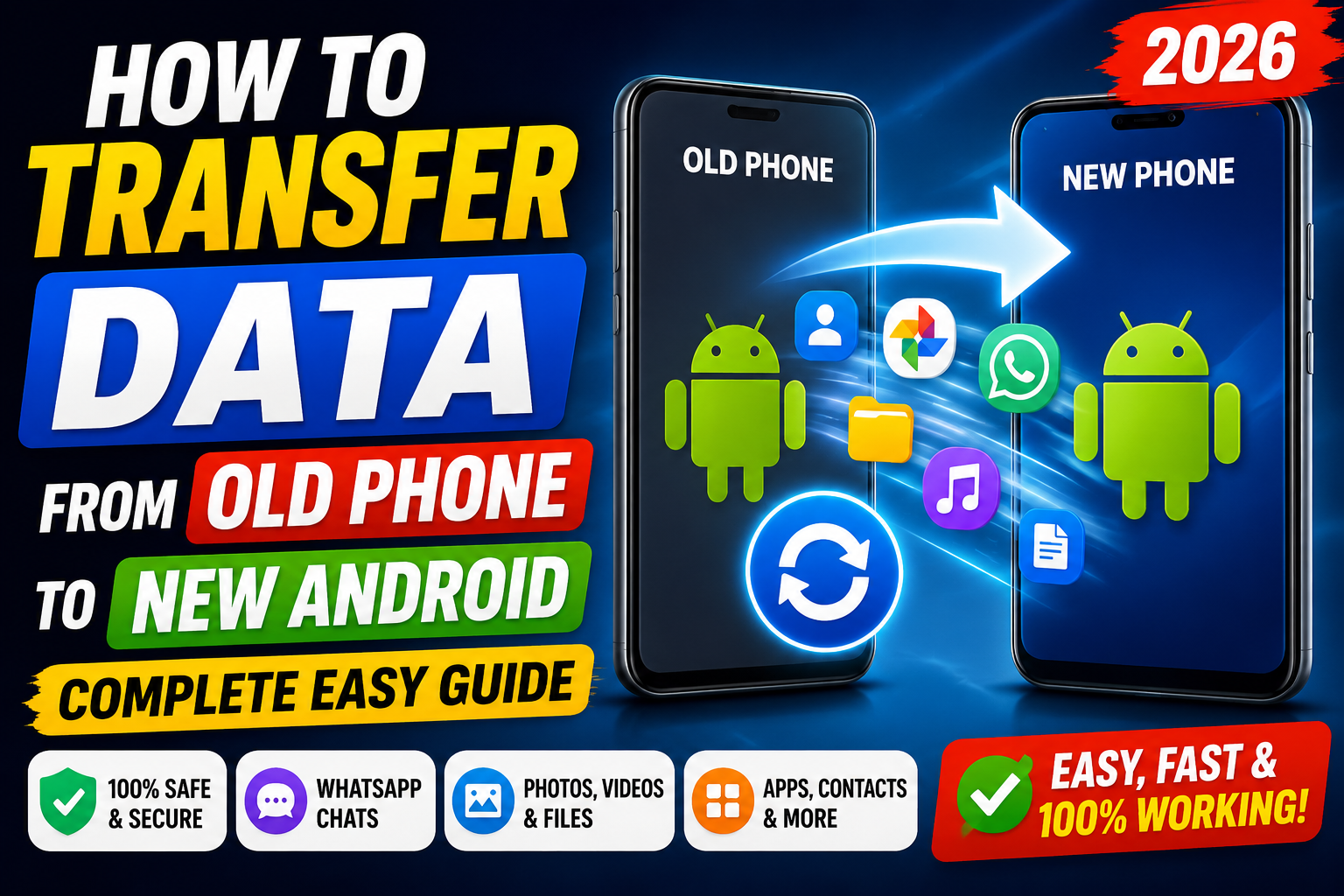
A new Android phone is exciting until you realise WhatsApp history, class PDFs, and two years of camera rolls still live on the old handset. You can move most of that without losing a weekend—if you decide what must come across, what can stay in cloud, and what you are willing to leave behind.
Skip megabrands of “one click transfer” APKs from search ads. Use Google backup, the OEM cable/wireless tool, and WhatsApp’s official flow.
Decide the must-move list
- Must: WhatsApp chats, SIM contacts, college Drive shortcuts, banking authenticator awareness, camera folder for projects.
- Should: SMS if you still rely on them, call history optional, home-screen layout (nice, not critical).
- Skip: Cached junk, dead games, duplicate screenshots, APKs you should re-download from Play Store.
Write the list. Transfer fails emotionally when people try to clone every byte including trash.
Charge, storage, and accounts first
- Charge both phones past fifty percent.
- On the new phone, sign into the same Google account you used on the old one.
- Connect both to reliable Wi‑Fi—hostel portals that drop every few minutes will frustrate large backups.
- Free space on the new phone for photos; a 64 GB phone cannot swallow a 180 GB camera habit without an SD card or cloud pruning.
Google backup and restore path
- On the old phone: Settings → Google → Backup (wording varies) and run a backup.
- During new phone setup, restore from that cloud backup when prompted.
- If the new phone is already set up, you can still install apps from the Play library; app data restore varies by app.
Contacts synced to Google appear after account sign-in without a cable. Confirm Contacts app shows them before you factory-reset the old phone.
OEM cable or wireless switch tools
Samsung Smart Switch, Pixel Transfer, Xiaomi/Mi tools, and similar official utilities can move more local data over cable or Wi‑Fi.
- Download only from Play Store or the OEM site.
- Follow on-screen prompts; keep both screens awake.
- Expect large photo copies to take time—do this overnight before you return the old handset.
WhatsApp without losing the group chaos
- On the old phone, create a WhatsApp backup to Google Drive (or the official method your app shows).
- Install WhatsApp on the new phone, verify the same number, and restore when asked.
- Do not logout/uninstall the old WhatsApp until the new restore finishes and a few chats open correctly.
Multi-device WhatsApp features change over time—follow the in-app backup screens rather than third-party “chat mover” tools.
Photos and documents
- If Google Photos backup was already on, sign in on the new phone and wait for the library to hydrate on Wi‑Fi.
- Copy DCIM and Download folders via cable to a laptop as a safety net if you have one, then to the new phone—or keep them on Drive.
- College PDFs: upload the semester folder to Drive once, then open on the new phone. That beats chasing scattered Downloads.
SIM, eSIM, banking, and OTPs
- Move the physical SIM or complete eSIM transfer with your carrier’s process.
- Re-register UPI and banking apps on the new phone; keep the old phone until OTPs work.
- Authenticator apps: follow each service’s device-change guidance before you wipe the old phone.
When to wipe the old phone
Only after: contacts visible, WhatsApp chats open, photos accounted for, banking OTPs on the new SIM path, and you stored any local files you care about. Then factory reset the old phone before sale or recycling.
Common failure points
- Different Google accounts on old versus new phone.
- WhatsApp backup skipped because Drive was full.
- Hostel Wi‑Fi captive portal interrupting mid-transfer.
- Wiping the old phone the same evening you “mostly” finished.
Slow down on the wipe step. A day of carrying both phones costs less than losing a year of class groups.
Verify on day two
- Open five important WhatsApp groups.
- Search Contacts for your class representative.
- Confirm Photos shows recent project images.
- Send yourself a UPI rupee test if you use UPI.
Keep changes reversible
Prefer settings you can undo. When a step helps, stop and note it in your phone. If the next step changes nothing, revert it. That discipline prevents a pile of unrelated tweaks that make the next troubleshooting session harder.
Common failure points
- Different Google accounts on the old versus new phone.
- WhatsApp backup skipped because Google Drive was full.
- Hostel Wi‑Fi captive portal interrupting mid-transfer.
- Wiping the old phone the same evening you only “mostly” finished.
- Photos living only in WhatsApp media with backup off.
Slow down on the wipe step. A day of carrying both phones costs less than losing a year of class groups and project images.
SD cards and file managers
If the old phone has an SD card, decide whether to move the card (when sizes match) or copy contents. Not every new phone includes an SD slot—budget for cloud or a USB-C pendrive. Use the official Files app to copy DCIM and Documents folders deliberately rather than trusting a single opaque progress bar from an unknown transfer APK.
App re-login checklist
- Email and college LMS.
- UPI and banking.
- Hotstar/Netflix and similar if you use them—expect device limits.
- Authenticator replacements per service instructions.
- Wi‑Fi passwords you will need at home and campus (write a few down securely before reset).
Verify on day two
- Open five important WhatsApp groups and confirm history.
- Search Contacts for your class representative.
- Confirm Photos shows recent project images on Wi‑Fi.
- Send yourself a tiny UPI test if you rely on UPI.
- Only then factory-reset the old phone for sale or recycling.
A calm transfer is a checklist, not a race. Official Google, OEM, and WhatsApp tools beat mystery movers that ask for SMS permission to “speed things up.”
Document what worked
Write your phone or laptop model and the step that restored normal behaviour. Future you will thank present you when the symptom returns after an update. Share the boring fix with classmates rather than a risky tool link from a random group chat.