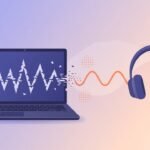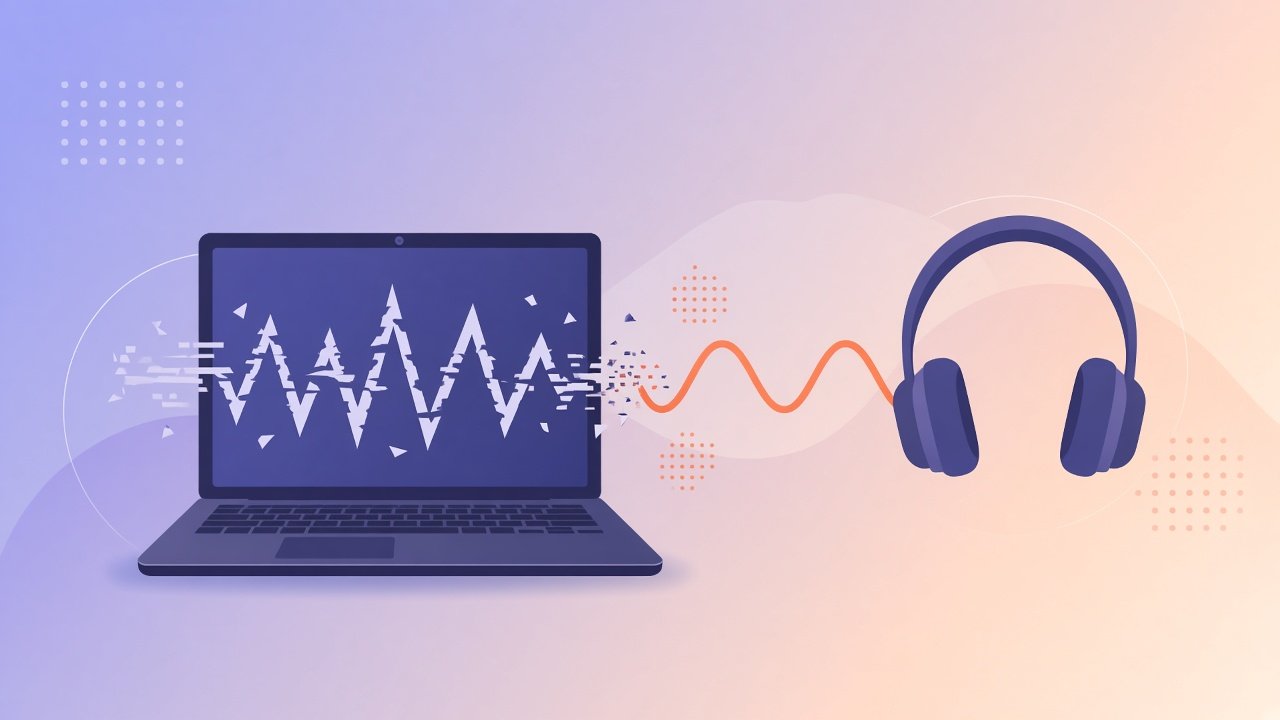
Crackling, popping, or robotic audio during Zoom, Google Meet, or Microsoft Teams can make a two-hour lecture feel longer than it is. On Windows 11 laptops the cause is often ordinary: exclusive mode fighting the browser, a sample rate mismatch, Bluetooth quirks, an outdated audio driver, or a power plan that throttles the wrong thing. This is a practical set of checks—not a ritual of ten identical “restart your PC” steps.
Work top to bottom. Change one thing, retest a one-minute Meet call with a friend or a second device, then move on.
Confirm what crackles
Before changing settings, notice the pattern.
- Does it happen only on Bluetooth headphones, or also on wired speakers?
- Is it on all apps, or only the class tool?
- Does it worsen when the laptop is on battery, or when Chrome has many tabs?
- Is your voice crackling for others, or only the teacher’s audio for you?
Inbound-only issues point toward playback devices and Bluetooth. Outbound-only issues point toward microphone exclusivity, USB headsets, or the app’s mic settings. Both directions suggest drivers, sample rate, or CPU/disk spikes.
Exclusive mode and sample rate
Windows lets apps take exclusive control of the audio device. Class apps and browsers sometimes fight over that.
Right-click the speaker icon → Open Sound settings → More sound settings (classic Control Panel style dialog). On the Playback tab, select your output device → Properties → Advanced.
Try this combination:
- Uncheck Allow applications to take exclusive control of this device (and the related exclusive priority box if shown).
- Set the default format to a common rate such as 16 bit, 48000 Hz (DVD quality) or 24 bit, 48000 Hz, matching what your headset documentation prefers when possible.
- Apply, close, retest.
Do the same under the Recording tab for your microphone if others hear crackling from you. Mismatched sample rates between Windows defaults and the meeting app are a frequent source of pops when the device resamples under load.
If audio improves after disabling exclusive mode, leave it off for class weeks. You can revisit later for music apps that demand exclusive output.
Bluetooth latency and interference
Bluetooth headsets are convenient in a hostel room and unreliable next to a microwave, a crowded 2.4 GHz Wi‑Fi band, or a USB 3 port that radiates noise. Crackling that vanishes when you plug in the same headset with a cable (or switch to wired earphones) is a strong Bluetooth clue.
Checks worth doing:
- Sit closer to the laptop; move the laptop away from the USB 3 HDD if you use one.
- Toggle Bluetooth off/on, or remove the device and pair again once.
- Prefer headsets that support a stable profile for calls; some “gaming” dongles behave better than generic Bluetooth for voice.
- As a control test, join the class on wired audio even once. If the crackle disappears, stop blaming Windows updates for a radio problem.
Bluetooth also shares attention with Wi‑Fi on many laptops. Pausing large downloads or drive sync during lectures is a blunt but effective experiment.
Drivers: update carefully, then stop
Use Windows Update’s optional drivers, or the laptop maker’s support page for your exact model. Install the audio or chipset package they list for Windows 11. Avoid random “driver booster” tools.
If crackling started right after a driver update, try Roll Back Driver in Device Manager when available, or reinstall the previous vendor package.
Realtek, Intel Smart Sound, HDMI audio, and Bluetooth Hands-Free AG Audio can appear as separate devices. Make sure the meeting app uses the headset you intend—not Hands-Free AG when you meant the stereo entry. Hands-free often sounds thinner; trying the alternate device is a fair test.
USB headsets and hubs
USB headsets add another audio interface. Try a direct motherboard USB port instead of a cheap unpowered hub. Different ports on the left versus right side sometimes behave differently on thin laptops.
If the headset has inline mute or EQ software, quit that overlay during class. Extra DSPs fighting Windows enhancements produce odd crackles. In the classic Sound dialog, on Enhancements or Spatial sound, try disabling enhancements as a test.
Power plans and background load
On battery, Windows 11 may slow processors enough that audio buffers underrun—heard as crackles—especially with browser-based Meet plus screen share.
Temporary checks:
- Plug in the charger during class when you can.
- Use a balanced or higher-performance power mode for the lecture hour.
- Close heavy tabs, pause OneDrive/Google Drive spam sync, and end unfinished renders.
You do not need a permanent “ultimate performance” lifestyle—just stable buffers for ninety minutes. If Task Manager shows Disk or CPU at 100% when crackles hit, fix that spike (full storage, antivirus scan, runaway update) rather than only chasing audio toggles.
Teams, Meet, and Zoom specific angles
Google Meet (browser) Try Incognito with only the Meet tab, or switch Chrome and Edge once. Disable extensions that inject into every page. Confirm mic and speaker names match Windows.
Zoom Test speaker and mic in Zoom’s audio settings. Turn off original-sound or heavy enhancement options while you diagnose. Re-select devices after Windows defaults change.
Microsoft Teams Teams caches device choices. Open settings → Devices, re-select speaker and mic, then rejoin. If crackling followed an app upgrade, test the browser version of the same meeting as a control.
Across all three: leave and rejoin after Windows device changes—many apps grab the audio stream at join time.
When to stop tinkering
If wired audio is clean, Bluetooth is the weak link—use wired for graded presentations and viva calls. If every device crackles and CPU is calm, a hardware fault or broken driver stack is possible; then vendor support or a clean audio driver reinstall is next, not a twentieth toggle.
Exclusive mode, sample rate, Bluetooth, drivers, USB path, power, and the meeting app’s device picker cover most student cases. Change one variable at a time, note what you tried, and protect the audio path you already proved stable when marks are on the line.