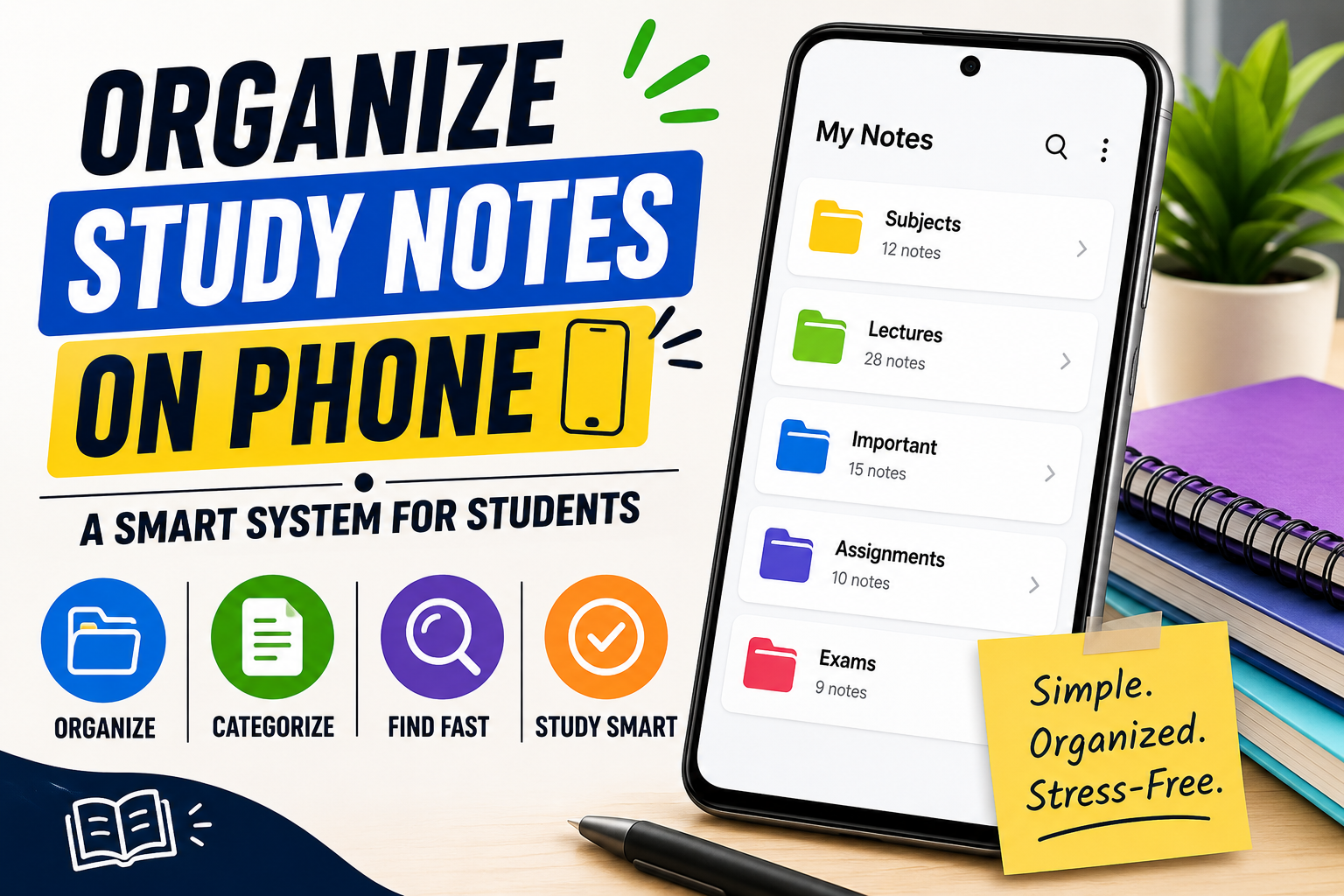
Most students take notes on their phone every day. They write during lectures, save screenshots, copy important points from PDFs, and make quick lists. But when exams come closer, they waste hours searching for those same notes. Some notes are in Gallery, some in WhatsApp, some in random folders, and some are completely lost.
I have seen this problem many times. The issue is rarely the phone or the app. The real problem is the lack of a simple and consistent system. In this guide, I will share a practical method to organize study notes on your Android phone so that you can find anything within seconds when you need it.
This is not a theoretical guide. This is based on what actually works for students who want less stress and better revision.
Table of Contents
Why Most Students Fail at Organizing Notes
Before creating a system, it is important to understand why notes become messy:
- Students use 4–5 different apps at the same time
- They never decide where a note should go
- They write without proper titles
- They never review or clean old notes
- They treat every note as permanent even when it is temporary
Without a clear system, even the best note-taking app becomes useless after a few weeks.
The Core Principle of Good Note Organization
A good system should answer three simple questions:
- Where should I write this note right now?
- Where will I find it later?
- How will I review it before exams?
If your system answers these three questions clearly, it will work.
Step 1: Decide Your Main Note-Taking Tools
Do not use too many apps. For most students, two apps are enough.
Recommended Combination:
- Google Keep → For quick and temporary notes
- Microsoft OneNote → For permanent and organized subject notes
Why this combination works well:
Google Keep is extremely fast. You can open it and write something in two seconds. OneNote is better for long-term organization because it supports notebooks, sections, and pages.
You can also use Notion if you prefer everything in one place, but it requires more setup time.
Step 2: Build a Clear Structure in OneNote
This is the most important part of the system.
Create notebooks like this:
- Current Semester
- Previous Semesters
- Formulas & Important Points
- Exam Preparation
- Assignments & Projects
Inside the Current Semester notebook, create one section for each subject.
Example:
Physics
- Chapter 1 – Laws of Motion
- Chapter 2 – Work Energy Power
- Important Formulas
- Previous Year Questions
- My Doubts
Chemistry
- Organic Chemistry
- Physical Chemistry
- Inorganic Chemistry
- Reaction Mechanisms
When every subject has its own clear space, you stop mixing notes.
Step 3: Use a Consistent Naming Style
Random titles create big problems later.
Instead of writing “Notes” or “Class today”, use this format:
Subject – Topic – Date
Examples:
- Biology – Cell Structure – 18 Aug
- History – French Revolution – Summary
- Maths – Integration – Practice Questions
This naming style makes searching very easy even after several months.
Step 4: Separate Quick Notes from Permanent Notes
Not every note deserves a permanent place.
Quick Notes (Google Keep):
- Points you write during class
- Temporary reminders
- Things you need only for a few days
Permanent Notes (OneNote):
- Cleaned and organized chapter notes
- Final summaries
- Important questions
- Formulas
At the end of the day or every weekend, move the useful quick notes into OneNote and delete the rest. This habit keeps your system clean.
Step 5: Add Tags and Visual Organization
Most note apps allow tags or color labels. Use them smartly.
Useful tags:
- #Important
- #Exam
- #Doubt
- #Revision
- #Formula
- #WeakTopic
You can also assign colors to subjects. For example:
- Blue for Physics
- Green for Biology
- Orange for Chemistry
- Purple for Maths
Visual organization helps your brain find things faster.
Step 6: Create Summary Pages for Revision
One powerful habit is to create a separate “Summary” page for every chapter.
After finishing a chapter, write:
- Key points in short
- Important formulas
- Common mistakes
- Questions you find difficult
During exams, you can revise from these summary pages instead of reading full notes again. This saves a lot of time.
Step 7: Weekly Review System
Organization dies without review.
Every week, keep 25–30 minutes for these tasks:
- Move important Keep notes into OneNote
- Delete unnecessary notes
- Update summary pages
- Mark weak topics
- Check if all subjects have proper structure
This weekly cleaning is what separates students who stay organized from those who start strong and then become messy again.
Step 8: Backup Is Non-Negotiable
Many students lose notes because they never take backup.
Do these things:
- Keep OneNote synced with your Microsoft account
- Occasionally export important notes as PDF and save in Google Drive
- Turn on automatic backup wherever possible
Losing notes just before exams can destroy confidence. Never take this risk.
A Simple Daily Routine That Works
Here is a realistic routine:
During Class: Write quick points in Google Keep or directly in OneNote.
After Class (10–15 minutes): Clean the note, give proper title, and put it in the correct section.
Weekly: Review and organize.
Before Exams: Use only summary pages + important questions.
This routine is simple enough that most students can actually follow it.
Common Mistakes You Should Avoid
- Using 5 different note apps at the same time
- Never giving proper titles
- Keeping all notes in one single notebook
- Not reviewing old notes
- Depending only on screenshots
- Ignoring backup
Final Thoughts
You do not need a perfect or complicated system. You need a simple system that you will actually use every day.
Start with only two apps: Google Keep and Microsoft OneNote. Create clear subject-wise sections. Use proper titles. Review once a week. Within two to three weeks, you will feel a clear difference in how easily you can revise.
Organized notes give you peace of mind. When everything is in the right place, studying becomes less stressful and much more effective.
read next blog:- click here
About the Author Rohit Srivastav is a BCA graduate from Azamgarh, Uttar Pradesh (276001). He writes practical technology and student productivity guides based on real experience to help students study more effectively with simple systems.
Disclaimer: The methods and app suggestions in this article are based on commonly available free tools and practical student experience. App features may change over time. Always download applications from the official Google Play Store.










1 thought on “How to Organize Study Notes on Phone – A Complete Practical System for Students”