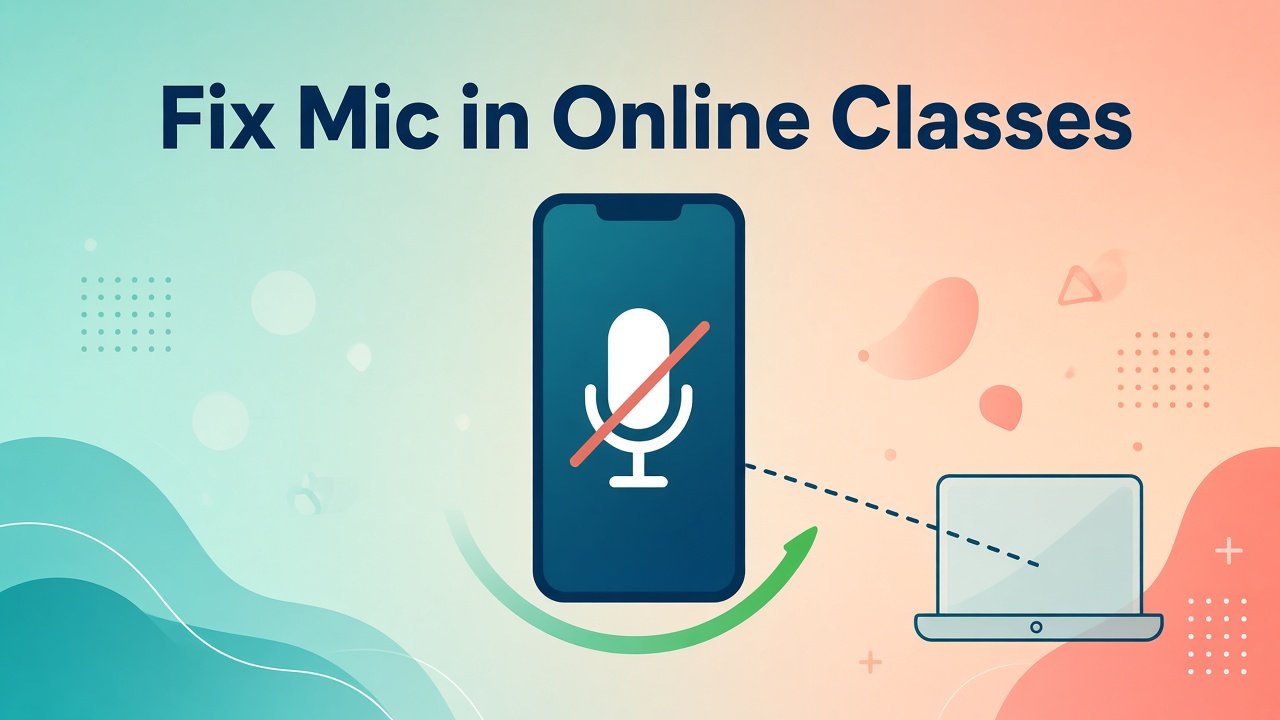
Your teacher is talking, classmates answer, and your mic stays silent. In Google Meet, Zoom, or Microsoft Teams, people type that they cannot hear you. The mute icon looks wrong, or the app never asks for microphone permission. For students on Android, this can cost attendance.
Most of the time the hardware is fine. Android blocked the app, another app grabbed the mic, or a Bluetooth headset took over. Work through these steps in order and stop when classmates hear you. Change one setting at a time so you know what fixed it.
1. Unmute the class app and check in-app mic controls
Before changing phone settings, look at the meeting screen.
In Meet, Zoom, Teams, or your college portal, tap the microphone icon until it shows you are unmuted. Some apps hide an arrow next to the mic. Open it and choose the built-in microphone, not a dead Bluetooth option. Leave the call, reopen the class link, and unmute again. Ask a classmate in chat to confirm they hear you count to three. If they hear you, you are done.
2. Give the class app microphone permission
Android will not let a meeting app use the mic until you allow it.
Open Settings → Apps → See all apps, then open your class app. Tap Permissions → Microphone and choose Allow only while using the app. On some phones use Settings → Privacy → Permission manager → Microphone and confirm the app is Allowed. Force stop the app, reopen it, join a waiting room, and speak. If a permission popup appears, tap Allow.
3. Disconnect Bluetooth headsets and try the phone mic
A half-connected earbud can steal the audio path even when that mic is off.
Turn off Bluetooth, or disconnect earbuds in Bluetooth settings. Join class using only the phone. Speak toward the bottom edge of the phone and keep your finger off the mic holes. If classmates hear you, the accessory was the problem. Charge the headset, forget it in Bluetooth settings, and pair it again later if you still want hands-free audio.
4. Close other apps that may lock the microphone
Only one app can own the microphone at a time on many Android phones.
Swipe away recent apps, especially voice recorders, open camera apps, and second meeting apps. End floating recorder bubbles. Restart the class app alone and join again. Close unused browsers too. A background recorder can leave Meet silent with little or no clear error.
5. Turn off Focus modes and extra silence layers
Some phones add silence layers that confuse meeting apps.
Swipe down the notification shade and turn off Focus, Digital Wellbeing, Driving mode, or mic-block tiles during class. Search Settings for Microphone access and disable any global block long enough to test. Check that Do Not Disturb is not paired with a call assistant that intercepts audio. Join once with these extras off and test your voice.
6. Check site permissions if you join class in Chrome
Many colleges open Meet or a portal inside Chrome.
In Chrome, open the class site, tap the lock icon near the address bar, then Permissions. Set Microphone to Allow. Reload and join again. If Chrome previously chose Block, the site cannot hear you even when other apps can. Prefer the official Meet, Zoom, or Teams app when your college allows it.
7. Update the class app and clear its cache
A stuck cache after an update can break mic startup.
Open Play Store, update your class app, then go to Settings → Apps → class app → Storage and tap Clear cache only. Do not clear data unless you are ready to sign in again. Force stop, reopen, join, and unmute. Install any pending system update, then reboot once. Outdated meeting apps often look unmuted while nobody hears you.
8. Test the microphone with Recorder or a phone call
You need to know whether the mic fails everywhere or only in class apps.
Open the built-in Recorder, record five seconds, and play it back. Or place a short call and speak. If both are silent, restart the phone, remove thick cases that cover mic holes, and gently clear lint with a dry soft brush. Avoid liquids. If Recorder works but Meet does not, return to app permission, Bluetooth routing, and Chrome site permission.
9. Restart the phone and try a short Safe Mode check
Temporary audio glitches clear after a clean reboot.
Power off fully, wait fifteen seconds, power on, wait for Wi-Fi, then join class before opening heavy games. If the mic fails only after certain apps load, reboot into Safe Mode using your brand’s steps and test Meet or Zoom there. If it works in Safe Mode, uninstall recent cleaner or booster apps after a normal reboot, then test again.
10. Avoid shady mic booster apps and know when to get help
Apps that promise magic microphone boosts rarely fix class audio and can add adware.
Stick to Settings, official meeting apps, and Play Store updates. If every app fails after cleaning the mic hole, testing another headset, and trying another phone, visit an authorized service center. Note which apps fail, whether Recorder works, and whether Bluetooth was connected. For deadlines, join from a backup device so you do not miss attendance.
What Should You Try First
Start with unmute in the meeting, microphone permission, and disconnecting Bluetooth. Those three checks fix most student cases quickly. Next, close other apps, allow Chrome mic access if needed, update the app, and clear cache. Use Recorder to separate a broken mic from an app setting. Restart and Safe Mode come later. Keep service visits for phones where every recording app stays silent.
Final Word
A silent mic in online class is usually a permission, mute icon, or headset routing issue. Unmute carefully, allow microphone access, test without Bluetooth, and confirm the phone can record a short clip. Work the list once in order, and you will usually be audible again before the next attendance mark. Keep fixes simple and official so your phone stays safe while you stay present in class.