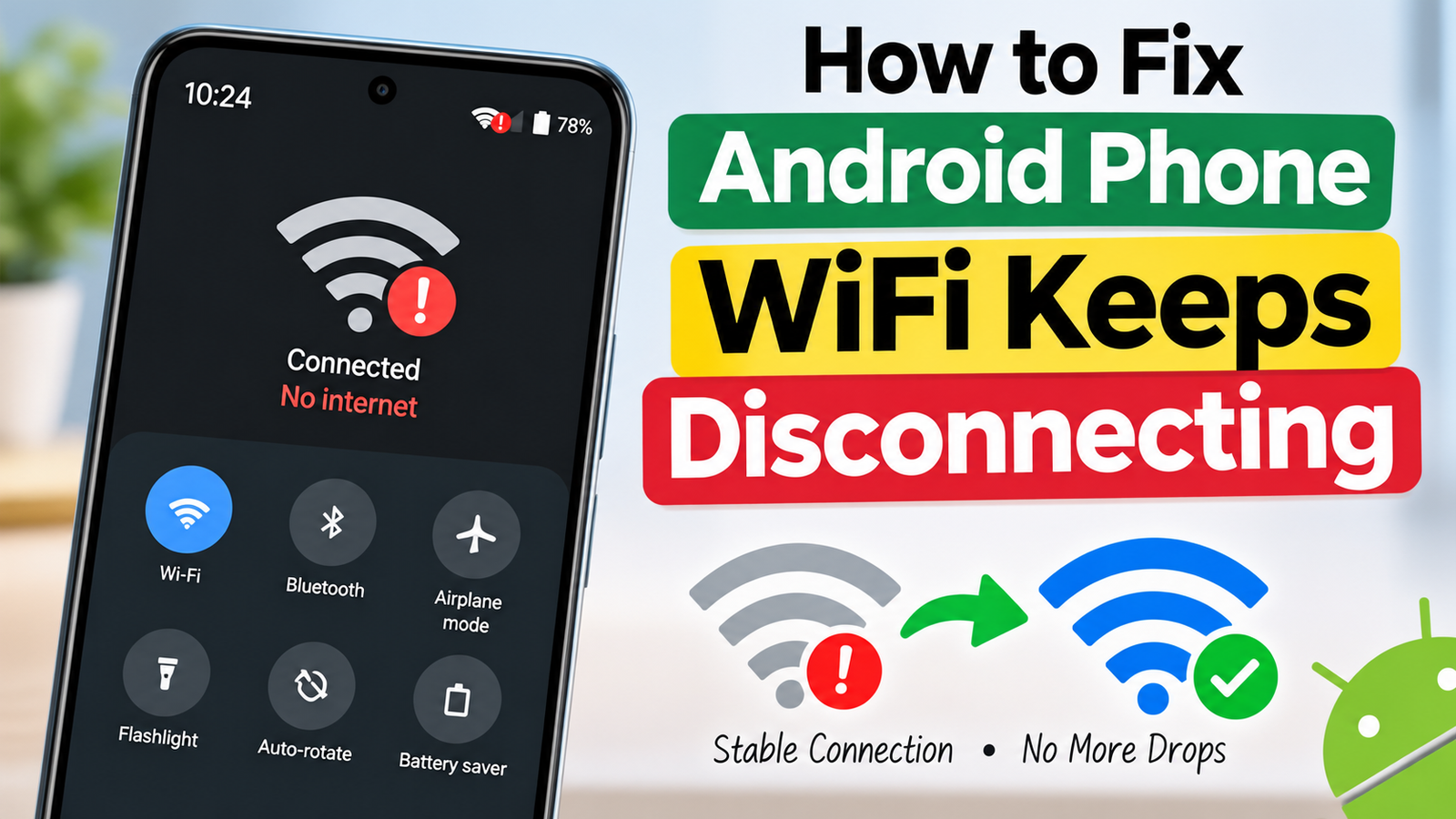
Your Android phone connects to WiFi, shows full signal for a few minutes, then drops. Videos pause. WhatsApp messages stop sending. You reconnect, and the same thing happens again. This problem is extremely common in 2026.
In most cases the phone is not broken. Android’s power-saving features, MAC address settings, or a small network glitch cause the disconnects. The steps below fix it for the majority of users. Start from the top.
Table of Contents
1. Toggle Airplane Mode
This is the fastest reset.
Swipe down from the top of the screen, turn Airplane mode on, wait 15 seconds, then turn it off. The phone reconnects to WiFi with a fresh radio state. Many temporary disconnects stop after this simple step.
2. Forget the Network and Reconnect
Saved network profiles sometimes become corrupted.
Go to Settings → Network & internet → Internet (or Wi-Fi). Tap the gear icon next to your network and choose Forget. Then select the network again and enter the password. This forces a clean connection.
3. Turn Off MAC Address Randomization
Android uses a randomized MAC address for privacy. Some routers handle this poorly and drop the connection repeatedly.
- Go to Settings → Network & internet → Internet.
- Tap the gear icon next to your WiFi network.
- Look for Privacy or MAC address type.
- Change it from “Randomized MAC” to “Use device MAC” or “Phone MAC”.
Reconnect to the network after changing this setting. This single change fixes the problem on many older routers.
4. Stop WiFi from Sleeping When the Screen Is Off
Android often turns WiFi down or off to save battery when the screen sleeps. That causes disconnects during long downloads or background sync.
On most phones:
Settings → Network & internet → Internet → gear icon (or three-dot menu) → Advanced → Wi-Fi when screen is off → set to Always.
On Samsung phones look under Intelligent Wi-Fi or Advanced settings for similar options.
5. Disable Switch to Mobile Data
Many phones automatically jump to mobile data when they think the WiFi signal is weak. This creates the feeling that WiFi keeps dropping.
- On Samsung: Settings → Connections → Wi-Fi → three-dot menu → Intelligent Wi-Fi → turn off Switch to mobile data.
- On Pixel and many other phones: Settings → Network & internet → Adaptive connectivity → turn it off.
6. Restart Both Phone and Router
Unplug your router for 30 seconds, then plug it back in. Restart your phone at the same time. This clears temporary glitches on both sides.
7. Reset Network Settings (Last Easy Step)
If nothing above works, reset all network settings.
Go to Settings → System → Reset options → Reset Wi-Fi, mobile & Bluetooth (the exact name varies by phone). Confirm. You will need to re-enter WiFi passwords afterward, but this clears almost all software-related connection problems.
When the Problem Is the Router
If every device in the house also disconnects, the issue is likely the router, not the phone. Try changing the WiFi channel in your router settings or restarting the router more thoroughly.
Quick Prevention Tips
Keep the phone closer to the router when possible. Avoid thick walls between the phone and the router. Update your phone’s software regularly, because WiFi bugs get fixed in system updates.
Most Android WiFi disconnect problems are solved by changing the MAC address setting, stopping WiFi sleep, or forgetting and rejoining the network. Start with those three. They work for the majority of users without any advanced steps.
About the Author
Rohit Srivastav is a BCA graduate from Azamgarh, Uttar Pradesh (276001). He writes practical technology guides in simple language to help everyday users fix common smartphone problems.
Disclaimer: These steps use standard Android settings. Exact menu names may vary slightly depending on your phone brand (Samsung, Pixel, Xiaomi, etc.). If the problem continues after trying all steps, the issue may be with the router or hardware.