Your Windows 11 laptop fan is running loudly even when you are just browsing or working on simple tasks. The noise becomes constant, and the bottom of the laptop feels warm. This is a very common problem, especially on laptops that are one or two years old.
In most cases the fan itself is not broken. It is working harder because the laptop is getting hotter than it should. Dust, high background activity, or power settings usually cause it. The steps below fix the noise for the majority of users without opening the laptop.
Table of Contents
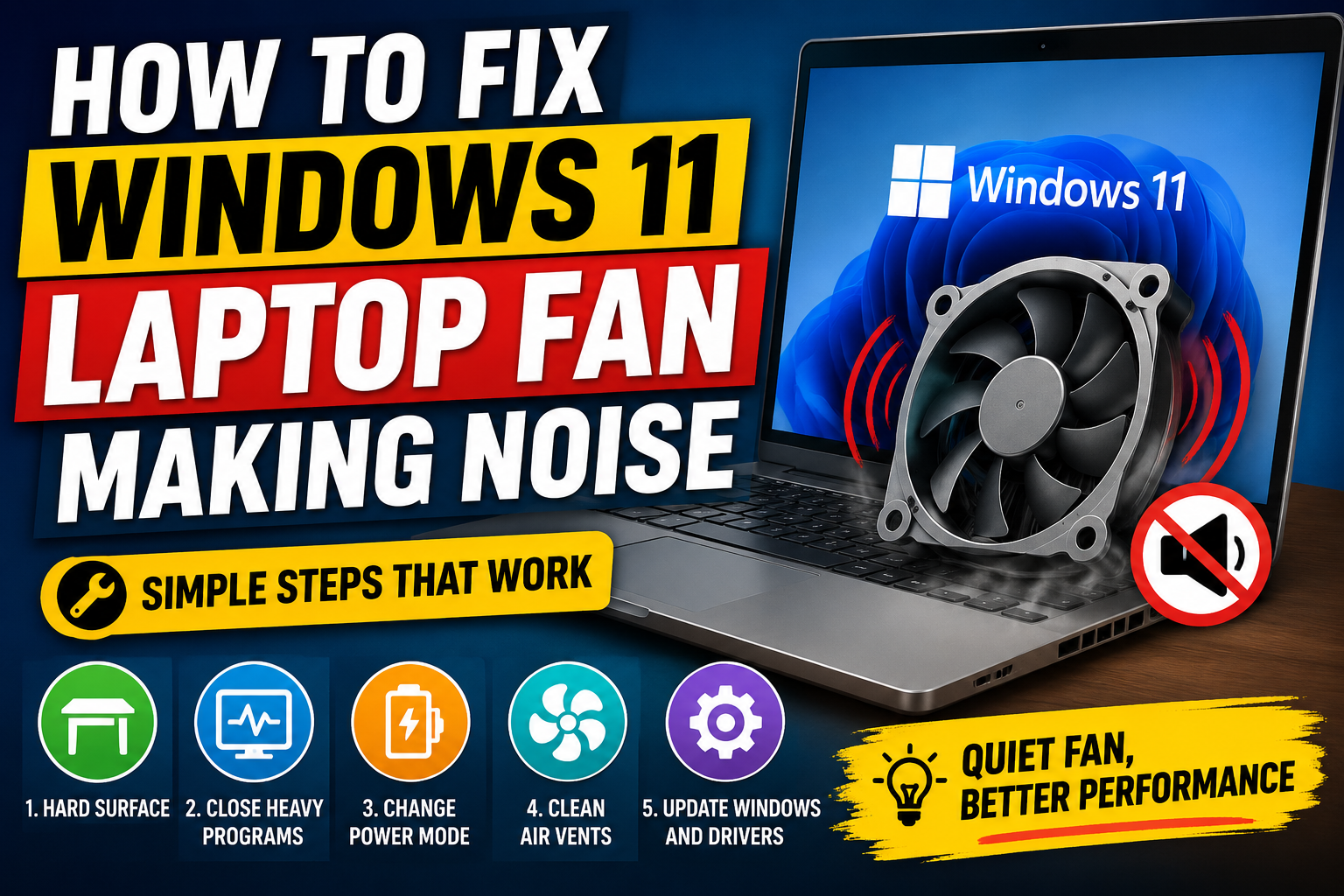
1. Move the Laptop to a Hard Surface
Soft surfaces like beds, sofas, or pillows block the air vents at the bottom. The laptop cannot push hot air out properly, so the fan spins faster and louder.
Place the laptop on a hard flat desk or table. Give it a minute. Many times the fan noise drops noticeably just from better airflow.
2. Close Heavy Background Programs
High CPU usage creates heat, and heat makes the fan run at full speed.
Press Ctrl + Shift + Esc to open Task Manager. Click the CPU column to sort processes from highest to lowest. Look for anything using more than 20–30% CPU while you are doing almost nothing. Close those programs.
Browser tabs (especially Chrome), game launchers, and cloud sync apps are common culprits. After closing them, wait a minute and listen to the fan.
3. Change the Power Mode
Windows 11 has power modes that directly affect how hard the processor works and how fast the fan runs.
- Click the battery icon on the taskbar or go to Settings → System → Power & battery.
- Change the Power mode to Balanced or Best power efficiency.
Avoid “Best performance” for normal daily work. That mode keeps the processor ready for maximum speed and often keeps the fan louder than necessary.
4. Clean the Air Vents
Dust is the number one long-term reason for loud fans.
Shut down the laptop and unplug it. Use a can of compressed air and give short bursts into the vents (usually on the sides or bottom). Hold the can upright and do not tilt it. Do not insert anything sharp into the vents.
This external cleaning is safe and often reduces noise significantly if the laptop has not been cleaned for months.
5. Update Windows and Drivers
Outdated graphics drivers or system files can cause the processor or GPU to work harder than needed.
Go to Settings → Windows Update and install all available updates. Also check Advanced options → Optional updates for driver updates. Restart the laptop after installing them.
6. Check Manufacturer Software (If Available)
Many brands include their own control apps:
- Dell → Dell Power Manager or MyDell
- Lenovo → Lenovo Vantage
- HP → HP Command Center or myHP
- ASUS → MyASUS or Armoury Crate
- Acer → Acer Care Center
Open the app and look for thermal or performance modes. Switch to Quiet, Balanced, or Silent mode if available. These modes limit fan speed under light loads.
When the Noise Continues
If the fan is still loud even when the laptop is cool and CPU usage is low, the problem is likely internal dust packed in the heatsink or dried thermal paste. At that point external cleaning is not enough. You will need a proper internal cleaning or thermal paste replacement, which is best done by a service center if you are not comfortable opening the laptop.
Simple Daily Habits That Help
- Keep the laptop on a hard surface
- Close unused browser tabs and apps
- Restart the laptop once every few days
- Avoid using it on soft surfaces for long periods
Most loud fan problems on Windows 11 laptops are fixed by better airflow, lower power mode, and cleaning the vents. Start with those three steps. They solve the issue for the majority of users without any risk or cost.
About the Author
Rohit Srivastav is a BCA graduate from Azamgarh, Uttar Pradesh (276001). He writes practical technology guides in simple language to help everyday users fix common laptop and smartphone problems.
Disclaimer: The steps in this article use safe and standard methods. If the fan makes grinding or rattling sounds, or the laptop shuts down from heat, take it to a professional service center.