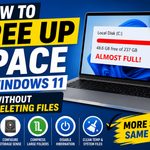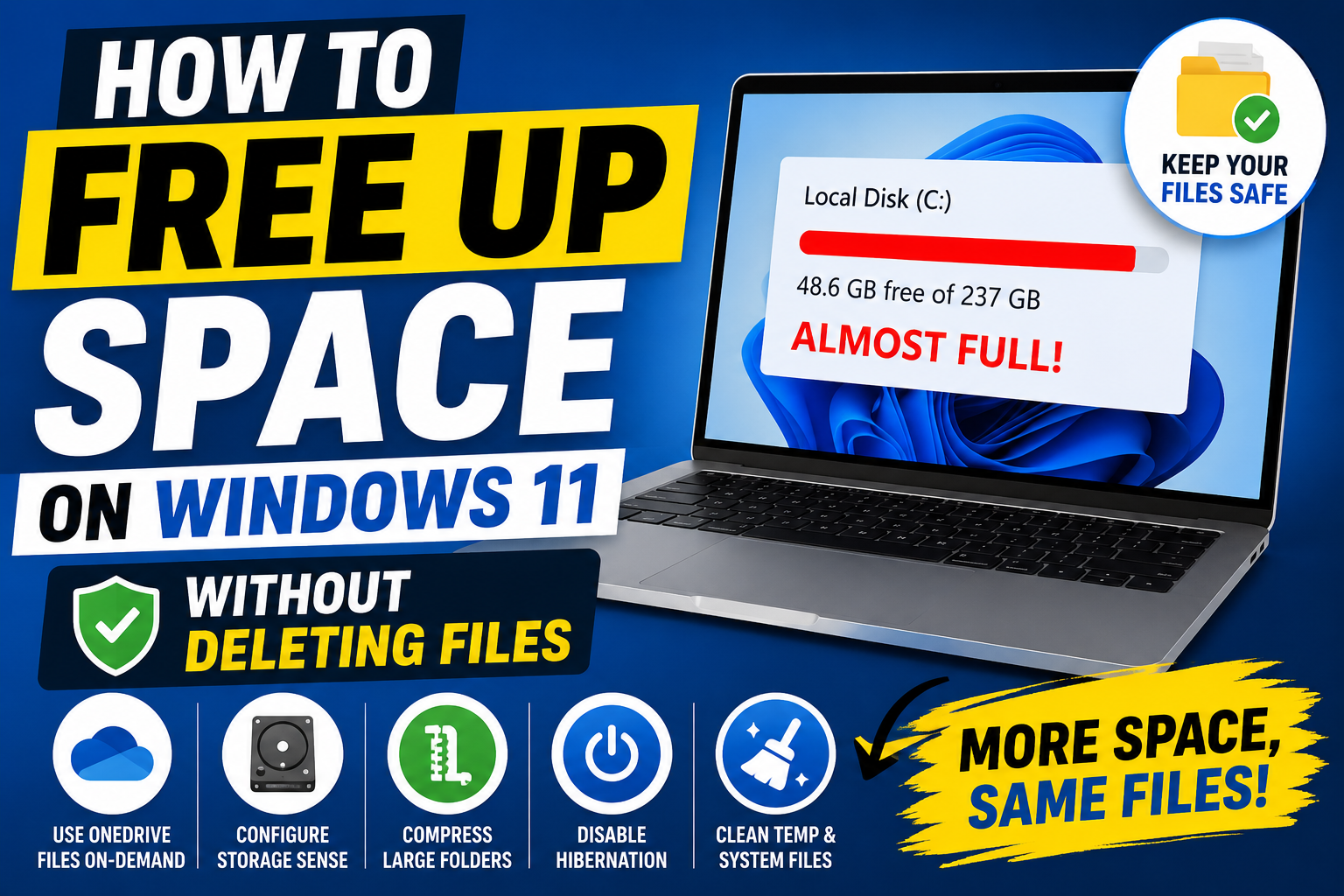
Your C: drive is almost full, but you do not want to delete photos, documents, or important folders. That is a common situation on Windows 11 laptops. Many people think the only options are deleting files or buying a new drive. That is not true.
Windows 11 has several built-in ways to free up storage while keeping your personal files safe and accessible. I have used these methods on multiple laptops. They work without touching your documents, pictures, or videos.
Table of Contents
1. Use OneDrive Files On-Demand (Biggest Safe Win)
If you already use OneDrive, this is the most effective method.
OneDrive can keep files in the cloud while showing only small placeholders on your laptop. The files remain fully accessible. When you open them, they download automatically.
How to do it:
- Right-click any large folder inside your OneDrive folder.
- Select Free up space.
The local copy is removed, but the file stays in the cloud and still appears in File Explorer. You can also set Storage Sense to automatically make old OneDrive files online-only.
This single step often frees 10–30 GB without deleting anything permanently.
2. Turn On and Configure Storage Sense Properly
Storage Sense can clean temporary system files and manage cloud content automatically.
- Go to Settings → System → Storage.
- Turn Storage Sense on.
- Click into the settings and enable:
- Keep Windows running smoothly by cleaning temporary files
- Automatic user content cleanup
Under cloud content settings, set inactive OneDrive files to become online-only after 30 days (or whatever period you prefer). This does not delete the files. It only removes the local copy.
3. Compress Large Folders (NTFS Compression)
Windows can compress files so they take less space on the drive while still remaining fully usable.
- Right-click a large folder that you do not open every day (old projects, archives, etc.).
- Select Properties → Advanced.
- Check Compress contents to save disk space.
- Apply the change to the folder and all subfolders.
The files stay exactly where they are. You can open and edit them normally. There is a small performance cost when opening compressed files, so use this mainly on folders you access less often.
4. Disable Hibernation (If You Do Not Use It)
Hibernation creates a large file (hiberfil.sys) that can take 8–20 GB depending on your RAM.
If you never use Hibernate and prefer Shut down or Sleep, you can safely turn it off:
- Search for Command Prompt, right-click it, and choose Run as administrator.
- Type this command and press Enter:
powercfg /hibernate offThe space is freed immediately. You can turn hibernation back on later with the same command using “on” instead of “off”.
5. Clean Temporary and System Files (These Are Not Your Personal Files)
Temporary files, old Windows update leftovers, and thumbnail caches are safe to remove. They are not your documents or photos.
- Go to Settings → System → Storage → Temporary files.
- Select the items you want to remove and click Remove files.
You can also run the classic Disk Cleanup tool, choose your C: drive, and click Clean up system files. Focus on Windows Update Cleanup and Temporary files.
6. Move Large Files to Another Drive or External Storage
If you have a second internal drive or an external hard disk, move heavy folders (Videos, large project folders, old downloads) there. The files remain fully accessible. You are only changing their location, not deleting them.
What You Should Avoid
Do not install random third-party cleaner software. Most of them are unnecessary and some cause problems. Stick to the built-in Windows tools listed above.
Also avoid manually deleting anything inside the Windows folder or Program Files. That can break the system.
Realistic Results
On a typical laptop that has never been cleaned properly, combining OneDrive online-only files, Storage Sense, compression of old folders, and disabling hibernation can free 20–40 GB while keeping every personal file intact and accessible.
Start with OneDrive Files On-Demand and Storage Sense. Those two steps alone solve the problem for most people without any risk to their data.
About the Author
Rohit Srivastav is a BCA graduate from Azamgarh, Uttar Pradesh (276001). He writes practical technology guides in simple language to help everyday users solve common computer problems safely.
Disclaimer: The methods described use official Windows 11 features. Always double-check before making changes. Results depend on your current storage usage and setup.