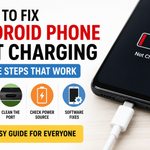
Your Android phone is plugged in but the battery percentage stays the same. Or worse, it shows the charging icon for a second and then stops. This is one of the most common problems people face with Android phones.
The good news is that in most cases the phone itself is not broken. The problem is usually the cable, the charger, dirt in the charging port, or a small software glitch. I have fixed this issue many times on different phones using the steps below. Start from the top and move down only if the previous step fails.
Table of Contents
1. Change the Cable and Charger First
This is the most common cause.
USB-C cables break from the inside long before they look damaged. The thin wires near the connector snap after months of bending.
Take a different cable and a different wall adapter (preferably one that came with another phone) and try charging. Also try a different wall socket. If the phone starts charging with the new combination, you have found the problem. Replace the old cable or charger.
2. Clean the Charging Port
Lint, dust, and pocket fluff collect inside the USB-C port and block proper contact.
Turn the phone off. Take a wooden or plastic toothpick (never metal) and gently scrape the bottom and sides of the port. You can also use a soft brush or short bursts of compressed air. After cleaning, plug the cable in firmly and check.
Many phones start charging immediately after this simple cleaning.
3. Restart or Force Restart the Phone
A temporary software glitch can stop the charging system from working even when the hardware is fine.
- If the screen works, hold the power button and tap Restart.
- If the phone is frozen or unresponsive, hold the Power button and Volume Down button together for 10–20 seconds until the phone restarts.
After it boots up, plug in the charger and wait a minute.
4. Remove the Case and Check for Moisture Warning
Some thick cases prevent the cable from sitting properly in the port. Remove the case completely and try again.
If you see a moisture or liquid detection warning, do not force the cable in. Leave the phone in a dry place for a few hours. Do not use a hair dryer. Heat can make the problem worse.
5. Check Battery Protection Settings
Some phones (especially Samsung) have battery protection features that limit charging.
Go to Settings → Battery and look for options like Battery protection, Charging limit, or Optimized charging. If any of these are set to stop at 80% or limit charging, turn them off temporarily and test.
6. Try Safe Mode
A third-party app can sometimes interfere with charging.
To enter Safe Mode on most Android phones:
- Press and hold the power button.
- Long-press the Power off option until you see “Reboot to Safe Mode”.
- Confirm.
If the phone charges normally in Safe Mode, a recently installed app is likely the cause. Restart normally and uninstall recent apps one by one until the problem disappears.
7. Let a Completely Dead Phone Charge for Longer
If the battery is fully drained, the phone may take 15–30 minutes before it shows any charging sign. Plug it into a working charger and leave it undisturbed for at least half an hour before judging.
8. Test Wireless Charging (If Available)
If your phone supports wireless charging, place it on a wireless charger. If wireless charging works but wired does not, the problem is almost certainly the charging port or cable.
When You Should Stop and Get It Repaired
If none of the above steps work after trying different cables, cleaning the port, and restarting, the issue may be with the charging port pins or the charging circuit inside the phone. In that case, take it to an authorized service center. Continuing to force cables into a damaged port can make the repair more expensive.
Quick Prevention Tips
- Avoid bending the cable sharply near the connector.
- Clean the charging port every few weeks.
- Use good quality cables instead of the cheapest ones.
- Do not use the phone heavily while it is charging if it gets very hot.
Most Android charging problems are fixed by changing the cable, cleaning the port, or restarting the phone. Start with those three steps. They solve the issue for the majority of users without any cost or risk.
Next Blog :- click here
About the Author
Rohit Srivastav is a BCA graduate from Azamgarh, Uttar Pradesh (276001). He writes practical technology guides in simple language to help everyday users fix common smartphone and laptop problems.
Disclaimer: These steps use safe and standard troubleshooting methods. Results may vary depending on the phone model and the exact cause of the problem. If the phone still does not charge after trying these methods, professional repair is recommended.