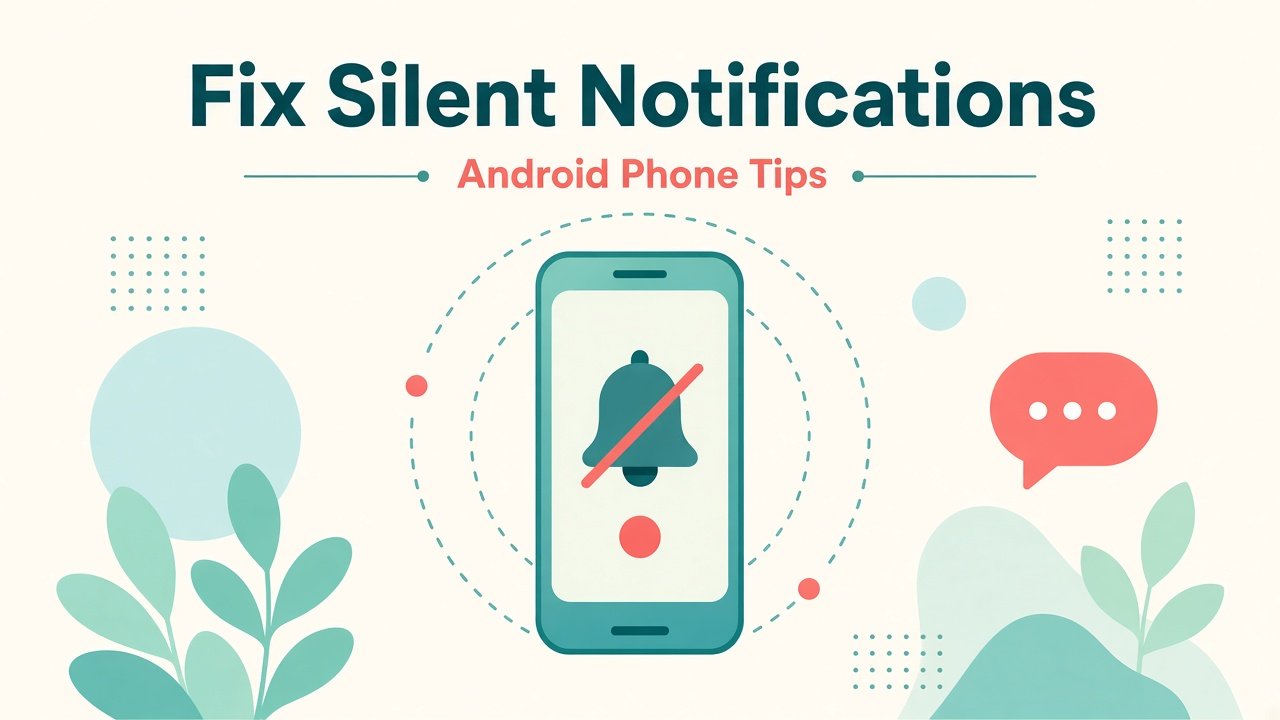
Your Android phone rings… or it does not. A friend says they messaged you an hour ago. Your bank OTP never popped up. WhatsApp ticks turn blue, but your lock screen stayed quiet. When notifications stop showing, it feels like the phone is ignoring you on purpose.
This common Android annoyance usually has a simple cause: a quiet setting, a battery saver rule, or one app that lost permission. You do not need a factory reset. Work through the steps in order. Most people get alerts working again before the last ones.
1. Confirm the phone is not on Do Not Disturb
Do Not Disturb (or Focus mode on some phones) can silence banners, lock-screen alerts, and vibration while messages still arrive in the background.
Open Settings, then search for Do Not Disturb or Focus. Turn it off. Also swipe down from the top twice to open Quick Settings. If a moon or Focus icon is highlighted, tap it to turn it off. Test with a message from another phone. If the alert appears, you are done. If not, keep going.
2. Make sure notification access is on for the app
Android controls alerts per app. One toggle can hide everything from WhatsApp, Gmail, banking apps, or college portals.
Go to Settings → Apps → See all apps. Open the silent app. Tap Notifications and turn Allow notifications on. Expand categories if you see them (Messages, Calls, Other) and enable the important ones. On some phones the path is Settings → Notifications → App notifications. Repeat for every app that should wake you.
3. Check lock screen and banner style
Sometimes notifications arrive, but you never see them because the lock screen hides content, or banners are set to Silent.
Open Settings → Notifications (or Lock screen). Set lock screen alerts to Show all or Show content, not Hide sensitive or Don’t show any. For the quiet app, set the alert style to Alert or Banner, not Silent. On Samsung, look for Pop-up notification. On Pixel, look for Default or Alerting. Send yourself a test message and watch both the lock screen and an unlocked home screen.
4. Turn off battery restrictions for important apps
Battery savers pause background work. Messages then arrive late or without sound until you open the app.
Open Settings → Apps → the quiet app → Battery (or App battery usage). Choose Unrestricted or No restrictions. Also open Settings → Battery → Battery saver and turn it off for a test. On Xiaomi, Oppo, Vivo, and Realme phones, allow Autostart and disable battery optimization for messaging apps. Leave the phone locked for a few minutes and ask someone to message you again.
5. Clear the app’s cache (not your chats)
A stuck notification channel can block alerts even when permission looks correct. Clearing cache is safe and does not delete chats if you choose Cache only.
Go to Settings → Apps → the quiet app → Storage. Tap Clear cache. Do not tap Clear data unless you are ready to sign in again. Force stop the app, reopen it, and send a test notification. If several apps are silent, clear cache for each one that matters.
6. Check system notification settings and adaptive options
Android has filters that learn from your habits. Sometimes they decide an app is less important and bury its alerts.
Open Settings → Notifications. Turn on Notification history if available so you can see what arrived. Disable Adaptive notifications, Adaptive sound, or similar smart options for a test. Confirm Show notifications on lock screen is on. Restart the phone after these changes so notification services reload cleanly.
7. Update the app and Google Play system components
Old app builds and delayed Play updates cause odd notification bugs after an OS update.
Open Google Play Store → profile icon → Manage apps & device → Updates available. Update the quiet apps, Google Play services, and Android System WebView if listed. Then check Settings → System → System update and install any pending update on Wi‑Fi while charging. Reboot once updates finish, then retest alerts.
8. Reset app preferences without wiping your phone
If many apps went quiet at once, a bad global preference may be the cause. Resetting app preferences restores defaults without deleting photos or chats.
Go to Settings → Apps → menu (three dots) → Reset app preferences → Reset. Confirm. You may need to set your default browser or phone app again. Reopen messaging apps, confirm notification permission is on, and run a quick test. This step fixes many “everything went quiet” cases.
9. Test in Safe Mode to spot a conflicting app
A recently installed cleaner, security app, or battery tool can mute notifications system-wide. Safe Mode loads only basic apps so you can spot the culprit.
Press and hold Power, then long-press Power off until Safe Mode appears (steps vary by brand). Ask someone to message you there. If notifications return, restart normally, uninstall recent utility apps one by one, and retest after each removal.
10. As a last resort, check account and network issues
Rare cases look like notification failures but are delayed sync or network problems. Confirm mobile data or Wi‑Fi works. Open the quiet app and pull to refresh. For SMS OTPs, ask the sender to resend. Remove and re-add the Google account only if sync is clearly broken and you know your password. Keep factory reset last, and only after you back up photos and chats.
What Should You Try First
Start with Do Not Disturb, then the app’s Allow notifications toggle, then lock screen and banner style. Those three fix most silent-phone complaints in under five minutes. If alerts still fail, remove battery restrictions and clear the app cache before bigger resets.
Final Word
A quiet Android phone is usually a settings problem, not a broken handset. Work from simple switches to deeper resets, test after every change, and you should hear that familiar ping again without wiping your data.