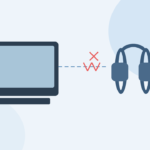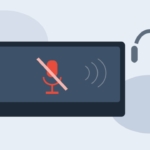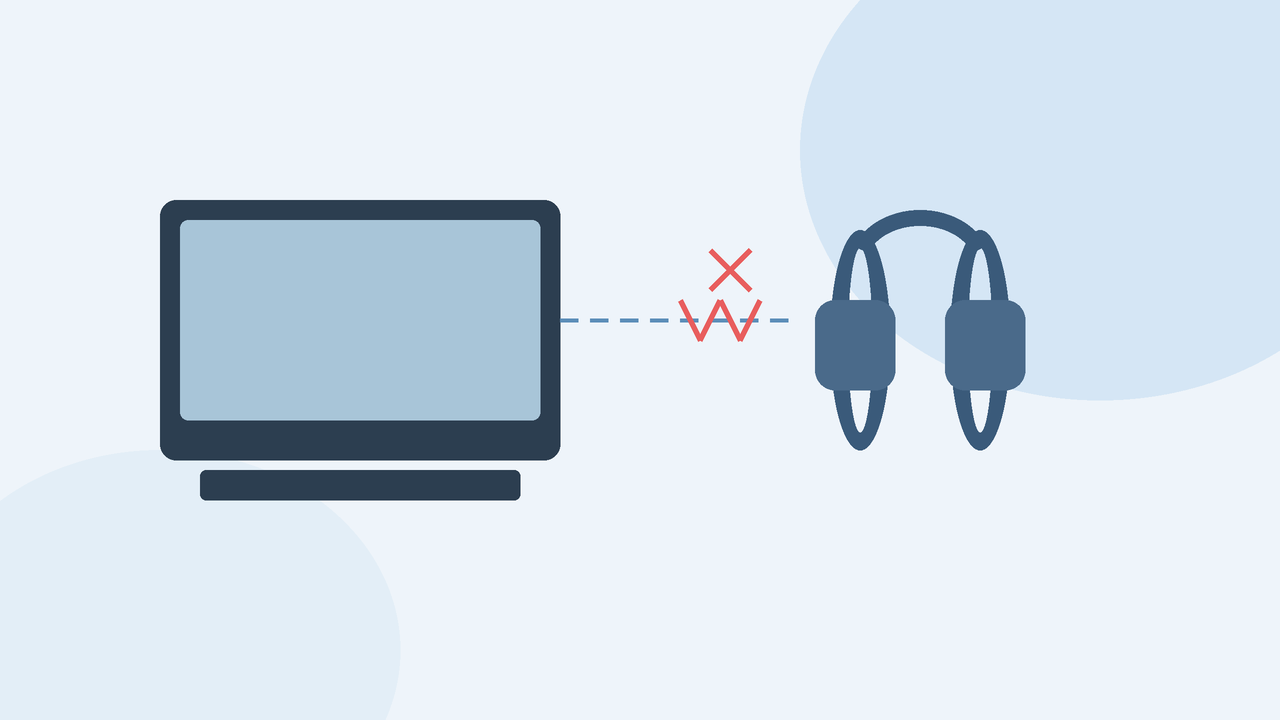
Bluetooth headphones that stutter, mute for a second, or drop mid-lecture turn online classes into guesswork. On Windows 11 the cause is often ordinary—distance, interference, power saving, or a confused pairing—not a doomed laptop. Work through light checks first, then heavier ones, and stop when audio stays stable through a full class.
What the symptom usually feels like
Also confirm the headphones misbehave on Windows but work fine on a phone. If both devices glitch, suspect the headset battery, firmware, or physical damage. If only the laptop glitches, keep reading.
Start with distance, obstacles, and interference
Bluetooth prefers short, clear paths. Move within a couple of meters with fewer walls. Take the laptop off a metal stand if you use one. Avoid burying the PC under pillows that block antennas.
Interference is common in hostels and shared flats:
- 2.4 GHz Wi-Fi routers beside the laptopBattery, fit, and multipoint confusion
Low headphone battery often shows up as unstable links before the dead-battery warning. Charge fully and retest. If your headset supports multipoint (two devices at once), disconnect the idle phone during long classes. Multipoint is convenient until the headset negotiates with two hosts and stutters.
Disable unused Bluetooth devices on the laptop—old speakers, forgotten pens, stale pairings. Each idle connection adds noise to an already busy radio environment.
Forget the device and pair cleanly
After pairing, set the headphones as the output device in Quick Settings and in the sound settings for your meeting app. Some apps keep an old speaker selected even after Bluetooth reconnects, which feels like a cut-out when it is really a wrong device.
Audio enhancements and exclusive mode
Windows and OEM audio suites sometimes add enhancements that fight certain Bluetooth codecs. In Sound settings, open the headphones’ device properties and temporarily turn off enhancements / spatial effects. In the Advanced tab, try disabling exclusive mode briefly to test stability during calls.
You are testing, not declaring enhancements evil. If cutting out stops, re-enable features one at a time to find the conflict. If nothing changes, turn them back on and move on.
A simple cycle helps more often than students expect: turn Airplane mode on for ten seconds, then off, so Wi-Fi and Bluetooth radios reset. Alternatively, toggle Bluetooth off/on from Quick Settings after closing the meeting app.
If drops began right after a Windows update, check your laptop maker’s Bluetooth advisory and install their matched driver rather than only the generic stack.
Compare with another device and another headset
Borrow a friend’s Bluetooth earbuds for five minutes on the same laptop. If the loaner is stable, your headset may be failing or poorly matched. If every headset stutters on this PC, focus on the laptop’s Bluetooth hardware, drivers, or interference around the desk.
Stop escalating when audio survives a full lecture and a music track without gaps. Document what fixed it—distance, multipoint off, clean re-pair, enhancements off—so you can repeat the fix after the next Windows update.
If nothing helps, consider a USB Bluetooth adapter from a reputable maker as a hardware workaround on desktops and some laptops, or use a wired option for critical viva exams. Persistent disconnects plus device manager errors may mean a service visit, especially on machines still under warranty.
Summary checklist
- Shorten distance; reduce metal and body blocking
- Charge headset; disable multipoint during class
- Reduce 2.4 GHz cl
Class-day triage when you cannot debug deeply
If the viva or attendance window starts in five minutes, switch to a wired headset or laptop speakers, join the meeting, and schedule Bluetooth fixes afterward. Passing the class matters more than winning an argument with a radio stack. Keep a cheap wired pair in the laptop bag for exactly these mornings.
After class, reproduce the dropout with a ten-minute YouTube video and a voice recording of yourself speaking. If video streams fine but microphone calls fail, focus on hands-free prutter; test with Wi-Fi toggled
- Forget device, reboot, re-pair; fix app output device
- Disable audio enhancements temporarily
- Update vendor Bluetooth drivers; airplane-mode cycle
- Compare another headset and another phone
- Use wired backup for high-stakes sessions if radio stays flaky
Bluetooth dropouts are annoying, not mysterious. Ordered checks from environment to pairing to drivers fix most student laptops without replacing headphones on day one.
Also test a wired headset or the laptop speakers during one class. That isolates whether you can finish today’s attendance while you keep debugging Bluetooth later.
When to stop and what to do next
Drivers, airplane toggle, and a quick OS refresh of the radio
Update Windows and check optional driver updates for Bluetooth and chipset entries from your laptop maker’s support page—prefer the vendor package when the generic Windows update fails. Avoid random “driver booster” sites.
When light checks fail, remove the pairing and start fresh:
- Put headphones in pairing mode per their manual.
- On Windows 11 open Settings → Bluetooth & devices.
- Remove the headphones entry.
- Restart both the headphones and the laptop.
- Add device again and reconnect.
- Microwave ovens during hostel meals
- USB 3 hubs and external drives near the machine’s Bluetooth antenna zone
- Crowded classroom Bluetooth traffic
Try switching the router to prefer 5 GHz for the laptop Wi-Fi if your campus network allows it, or briefly test audio with Wi-Fi off to see whether the dropouts shrink. You are checking interference, not committing to study offline forever.
Cutting out can mean short silent gaps, robotic distortion, one ear dropping, or a full disconnect that needs a manual reconnect. Note when it happens: only on calls, only while browsing, only when the laptop sits on the bed near a router, or only after the headphone battery falls low. Timing clues save random tinkering.