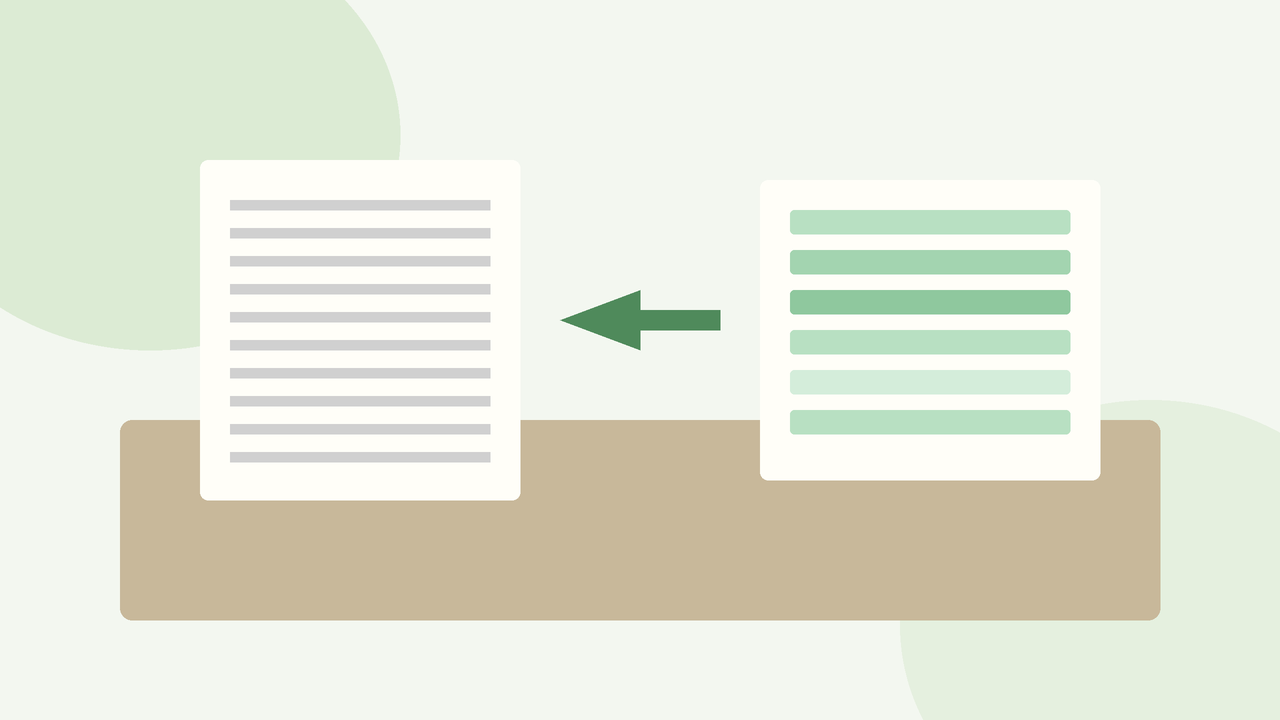
Printed notes, scanned question papers, and photo PDFs show up constantly in Indian college life. Re-typing them wastes evenings you need for actual studying. OCR—optical character recognition—turns those images into selectable, searchable text you can paste into Word, Google Docs, or a code editor. Free options exist, but each type has limits. This guide compares approaches without pretending every “free” button is unlimited.
Why OCR matters for students
Typing everything by hand invites typos, especially with equations or long citations. OCR is not perfect—messy handwriting and low-light photos still fail—but for clear printed English (and often Hindi or other scripts depending on the tool), it saves real hours during assignment week.
What “free” usually limits
Expect one or more of these ceilings:
- Daily page or character caps
- Watermarks on exports unless you upgrade
- Cloud upload requirements (privacy trade-off)
- Weaker accuracy on complex layouts, tables, or math
- Mobile-first apps that only offer a thin Windows path
- Ads or upsell screens after every third scan
Free tiers are useful for occasional coursework. They are painful if you must convert an entire semester’s scanned book every week. Match the tool type to how often you OCR, not to the flashiest homepage claim.
Microsoft OneNote can take an image and offer copy text from picture on many installs. Word and some PDF viewers can open image-heavy files and let you select recognized text when the feature is enabled. The Snipping Tool ecosystem and clipboard workflows vary by Windows 11 version, so results differ across lab machines.
Strengths: no extra install on locked college PCs, decent for clear English print, familiar UI. Limits: awkward for bulk jobs, weaker on multi-column notes, and features may be missing on stripped lab images.
Use built-ins first when you only need a paragraph from one clean scan.
Option type 2: Dedicated free OCR utilities
Pick this type when you regularly convert clear printed PDFs and want files to stay on the laptop.
Option type 3: PDF apps that include OCR
Many free PDF readers and editors add an “Recognize text” or “OCR” step so you can search inside a scanned assignment PDF. That is ideal when the deliverable must remain a PDF with a text layer for highlighting.
Strengths: keeps pagination, good for annotation workflows, familiar for students who already mark PDFs. Limits: free OCR may cap pages per month; complex math and diagrams remain image-like; some apps push cloud accounts.
Use PDF+OCR when the teacher wants annotated PDFs back, not a raw text dump.
Option type 4: Browser and upload OCR
Reserve browser OCR for non-sensitive, short documents when desktop tools are blocked.
Comparison criteria that actually matter
Judge tools on:
- Accuracy on your real notes (test one page before committing)
- Offline vs cloud
- Page limits you will hit during exams
- Export formats (TXT, DOCX, searchable PDF)
- Layout retention for columns and bullet lists
- Language support if you study bilingual materials
- Whether the college PC allows installation
Ignore homepage adjectives like “AI-powered miracle.” Run the same sample page through two options and compare mistakes in numbers, names, and punctuation—those break citations fastest.
For a multi-page scanned PDF: OCR once into a searchable PDF, store it in your subject folder, and highlight there. Re-running OCR weekly on the same file wastes caps.
For code or terminal screenshots: OCR helps, but verify every character. A single misread dash breaks scripts.
What not to expect
OCR will not cleanly digitize messy handwriting, heavy shadows, or crumpled pages photographed at an angle. It will not perfectly rebuild complex equations or chemistry structures. It will not excuse uploading someone else’s entire copyrighted textbook to a random website. Treat OCR as an assistant for clear print and careful review—not as a copy-paste autopilot.
Also avoid cracked “pro” packs. Free tiers plus honest limits beat malware-laden cracks that steal browser sessions.
Bottom line
Start with built-in OneNote or PDF OCR for light work. Move to a dedicated offline utility when you convert clear printed material often. Use browser OCR only for small, non-sensitive jobs on locked PCs. Compare accuracy on your own samples, watch free caps, and always proofread numbers before submission. That mix covers most Windows student needs without paying during the first semester rush.
Keep a tiny “OCR sample” folder with one clean page and one messy page. Whenever you try a new free tool, run both samples first. Ten minutes of testing beats discovering a daily cap at midnight before a deadline.
Sensible student workflows
For a photo of printed notes: crop tightly, increase contrast if the tool allows, run OCR, then spend two minutes fixing names and figures. Never paste straight into a final submission without a skim.
Web OCR tools let you upload an image or PDF and download text. They are handy on a borrowed lab PC where you cannot install software.
Strengths: zero install, quick one-off jobs, often support multiple languages. Limits: privacy—do not upload ID cards, admit cards, or confidential project data; queues and caps during peak hours; quality varies; large files fail on weak networks.
Desktop OCR utilities focus on open image → recognize → export TXT or DOCX. Some run offline, which helps on slow hostel Wi-Fi and keeps question papers off random servers.
Strengths: batch-friendly, repeatable, often better for multi-page homework packets. Limits: installers may bundle extras—choose careful download sources; accuracy still depends on scan quality; some free builds throttle advanced language packs.
Option type 1: Built-in Windows and Office paths
Windows itself and common campus software already cover light OCR.
You might need text from:
- A lecturer’s photocopy uploaded as a flat PDF
- Photos of whiteboard work from a lab
- Old printed notes borrowed from a senior
- Forms and certificates you must quote accurately
- Screenshots of error messages for a bug report