Handing your phone to a classmate so they can open one map, one form, or one payment screen should not mean handing them your entire digital life. Android app pinning (sometimes called screen pinning) locks the phone to a single app until you unpin it with your PIN, pattern, or biometric. It is a small built-in feature that solves a very campus-shaped problem: shared demos without open WhatsApp, photos, or email.
What app pinning is
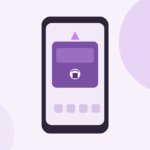
When pinning is on, the current app stays full screen. The Recents button and Home gesture stop bouncing people into your other apps. Notifications may be limited depending on your Android version and brand skin. To leave, the person needs your unlock method after the unpin gesture.
Think of it as a temporary kiosk mode for one app—not a full work profile, not a guest user, and not the same as locking an app with a separate vault password. It is lighter and faster for “use this one screen for two minutes.”
Names and menu paths differ. Stock-like Android and many Pixel-style phones call it App pinning under Security or Security & privacy. Samsung often lists it as Pin windows. Xiaomi, Realme, OnePlus, Vivo, and others may hide similar options under Special features, Privacy, or Fingerprint & security. Search Settings for “pin” if the label differs.
When shared and demo phones need it
Common student moments:
- Showing a teammate one Drive file or LMS page without exposing chats
- Letting a relative complete a UPI payment confirmation while you watch
- Demo-ing your project UI to a teacher for a minute
- Passing the phone for a quick QR attendance scan in a crowded class
- Letting a friend navigate Maps while you hold bags
Without pinning, people swipe up out of habit and land in Recents. That is how awkward screenshots of chats happen. Pinning reduces that risk for short shares.
It is less ideal for long borrowing sessions. If someone needs your phone for an hour, a guest user or a second profile (where available) is cleaner. Pinning shines for short, supervised shares.
How to turn pinning on and use it (high level)
Exact taps vary, but the pattern is similar:
- Enable the feature once in Settings (search “App pinning” or “Pin windows”).
- Open the app you want to share.
- Open Recents / overview.
- Choose the app’s card menu and tap Pin / Pin this app.
- Hand over the phone.
- To unpin, use the required gesture (often hold Back and Overview, or follow on-screen hints) and unlock.
Some phones ask whether locked pinning should require your PIN or biometrics to unpin. Turn that requirement on. Otherwise a determined person might unpin without your secret.
After you enable the feature the first time, everyday use is mostly Recents → Pin. You do not need to revisit deep settings every share.
Limits you should expect
Pinning is not a fortress. A determined person with time and physical control of the device can still try social engineering (“what’s your PIN?”) or wait until you unlock for them. Treat it as friction for honest classmates and relatives, not as enterprise security.
Notifications may still peek depending on OEM behavior. Sensitive banners can appear over the pinned app on some skins. If that worries you, enable a focus or notification pause before pinning, or share only apps that do not trigger noisy alerts.
Some banking and secure apps behave oddly when pinned, or block screenshots and overlays. Test your payment app once before a real queue queue. Maps, browsers, calculators, and PDF readers usually behave fine.
Pinning also does not hide the content already visible inside the pinned app. If your email thread is open, they see that thread. Close private tabs and chats before you pin.
Common mistakes
Students often enable pinning in Settings but forget the Recents pin step, then wonder why nothing changed. Others pin the wrong app card when several are open. A third mistake is leaving pinned mode on after the share ends, then getting confused when Home “does nothing.”
Another frequent miss: skipping the “ask for PIN before unpinning” option. Without it, unpinning can be too easy.
Finally, do not confuse app pinning with app lock. App lock asks for a code when opening selected apps from your own home screen. Pinning freezes one already-open app for someone else. You may want both: app lock for daily privacy, pinning for short handovers.
FAQ students actually ask
Does pinning drain battery? Negligible compared with keeping the screen on for the demo itself.
Can they still take screenshots? Often yes inside the pinned app, unless that app blocks capture. Assume they can capture what they see.
What about iPhones? Guided Access is the closest idea. This article focuses on Android because brand menus differ widely in India.
Will it work on older Android versions? Many phones from recent years include it, but budget skins sometimes rename or bury it. Search Settings; if it is missing, use a guest account for longer shares when the OEM provides one.
A simple campus habit
Before any share: close private apps, open only the target screen, pin it, and require unlock to unpin. Afterward, unpin yourself, glance at Recents, and lock the phone. That thirty-second ritual prevents most “I accidentally opened your WhatsApp” moments without installing anything extra.
App pinning will not replace good judgment about whom you hand the phone to. It will make ordinary classroom and hostel shares far less stressful. Turn it on once, practice the pin gesture twice, and keep it in your mental toolkit next to mute and airplane mode.
If your OEM truly lacks pinning, create a short checklist instead: lock the phone, open only the needed app after unlock, stand nearby during the share, and lock again immediately. Pinning is the smoother path when available—but awareness beats a missing menu.