Your phone already knows how long you spent in Instagram, YouTube, WhatsApp, and that one game you swore you would open “just for five minutes.” Android Digital Wellbeing turns those quiet totals into a readable dashboard so you can see patterns instead of guessing. It is not a parental-control scare tool by default. It is a mirror for your own attention—especially useful when semester pressure rises and evenings disappear into endless scrolling.
What Digital Wellbeing is
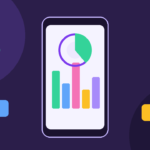
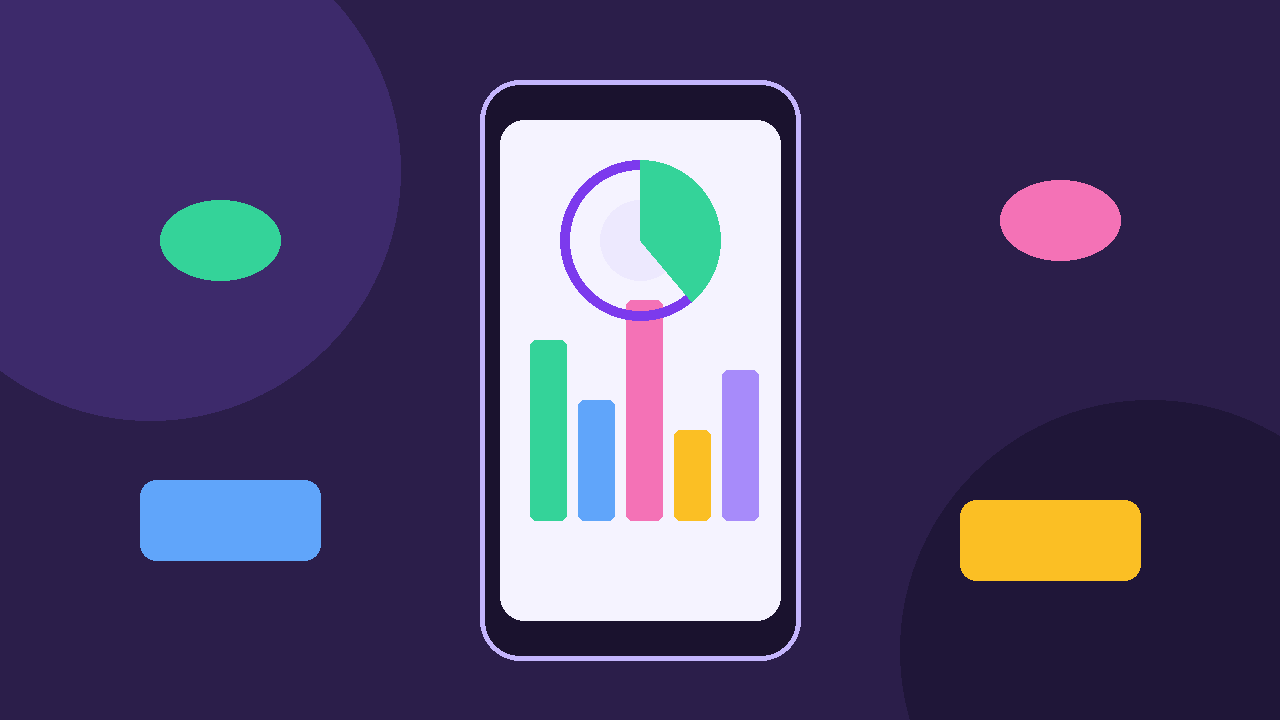
Digital Wellbeing is Google’s built-in suite on most modern Android phones (Pixel and many other brands that ship Google’s version of the feature). Open it from Settings, or search “Digital Wellbeing” in the app drawer. The home view typically shows a daily timer chart: how much screen time you logged today, which apps led, and how that compares with recent days.
Related tools live nearby: app timers, bedtime or wind-down modes, Focus mode (on many devices), notification management shortcuts, and parental supervision options if you set up Family Link. Names and menus shift slightly by Android version and manufacturer skin, so treat labels as approximate and follow what your Settings search finds.
Digital Wellbeing does not delete your apps or punish you. It reports usage and offers gentle limits you choose.
Why the dashboard matters for students
Campus days already fragment attention: classes, group chats, placement alerts, short-form video, and “quick checks” that become forty minutes. Without numbers, every evening feels busy but unmeasured. With numbers, you can see that two apps ate the block you meant for revision.
Useful questions the chart answers:
- Which apps take the largest slice after 9 p.m.?
- Did Sunday “rest” become six hours of one feed?
- Is messaging time high because of real coordination, or endless forward chains?
- Did an exam week actually reduce entertainment time, or only move it later at night?
You do not need perfect discipline. You need visibility before you invent rules.
Reading your screen time without guilt spirals
Open the daily or weekly view and look for concentration, not shame. A high WhatsApp total during project week can be legitimate coordination. A high Shorts or Reels total during the same week is a different story.
Sort apps by time. Pick the top two entertainment apps and ask whether they match your stated goals for the week. If they do not, set a timer on those two first—not on every app at once. Over-restricting everything usually fails by Wednesday.
Also notice unlock counts and notification load if your version shows them. Frequent unlocks often mean the phone is interrupting study more than a single long session would.
App timers: small limits that stick
App timers let you set a daily maximum for a specific app. When the timer ends, the icon greys out and the app pauses until midnight (exact behavior can vary). Start with entertainment apps you already know overshoot—video feeds, games, shopping browsers—not with Maps or your college LMS.
Practical student setup:
- Give yourself a realistic first limit (for example 45–60 minutes on a feed app), not an aspirational five minutes you will break
- Keep messaging apps unlimited unless late-night chat is the real problem
- Review timers every Sunday; tighten only one app at a time
- If you unlock the app after the limit using the bypass option, treat that as data, not failure—adjust the timer or the evening routine
Timers work best as guardrails around known weak spots, not as a total lockdown.
Bedtime mode, Focus mode, and quieter evenings
Many phones include a bedtime or wind-down schedule inside Digital Wellbeing or adjacent settings. Grayscale screens, muted notifications, and Do Not Disturb windows help your brain notice that night has started. Pair this with charging the phone across the room if you can—habit beats another software toggle.
Focus mode (where available) pauses selected distracting apps during a study block while leaving tools you need. It complements Digital Wellbeing’s reporting: one shows where time went; the other blocks a known set during a planned session. Use Focus for 50–90 minute study blocks; use Digital Wellbeing charts to decide which apps belong on the pause list.
Exact names differ on Samsung, Xiaomi, and other skins. Search Settings for “Digital Wellbeing,” “Focus,” “Bedtime,” or “Modes” if icons moved.
Notifications: the hidden screen-time multiplier
Screen time is not only deliberate opens. A burst of notifications pulls you back, and each return adds minutes. Inside Digital Wellbeing or Apps & notifications settings, review which apps can interrupt you. Academic and family channels can stay; promotional and social badges can wait until a scheduled check.
Try a two-check rule on heavy days: open social apps at lunch and after dinner, not between every lecture. Digital Wellbeing will show whether the rule reduced total time within a week.
Privacy and what the feature does not do
Digital Wellbeing usage data is primarily for on-device insights you view yourself. Parental supervision features are separate and require setup. The dashboard is not a public scoreboard and should not become a comparison contest in a hostel group chat.
It also cannot fix a timetable that is overloaded. If your chart shows almost no free time because classes and commute fill the day, the fix is schedule design, not a harsher timer.
A simple weekly review habit
Once a week, open the weekly view for five minutes:
- Note total screen time versus last week
- Name the top two apps
- Decide one change (timer, bedtime window, or notification mute)
- Ignore the rest until next week
That single change compounds better than a dramatic digital detox that lasts one weekend.
Closing thought
Android Digital Wellbeing explained simply: it shows where your phone time goes so you can steer it. Students do not need monastic silence; they need fewer accidental hours in the apps that steal revision blocks. Open the dashboard this evening, set one honest timer on the app that surprises you most, and let the numbers—not guilt—guide the next small adjustment.