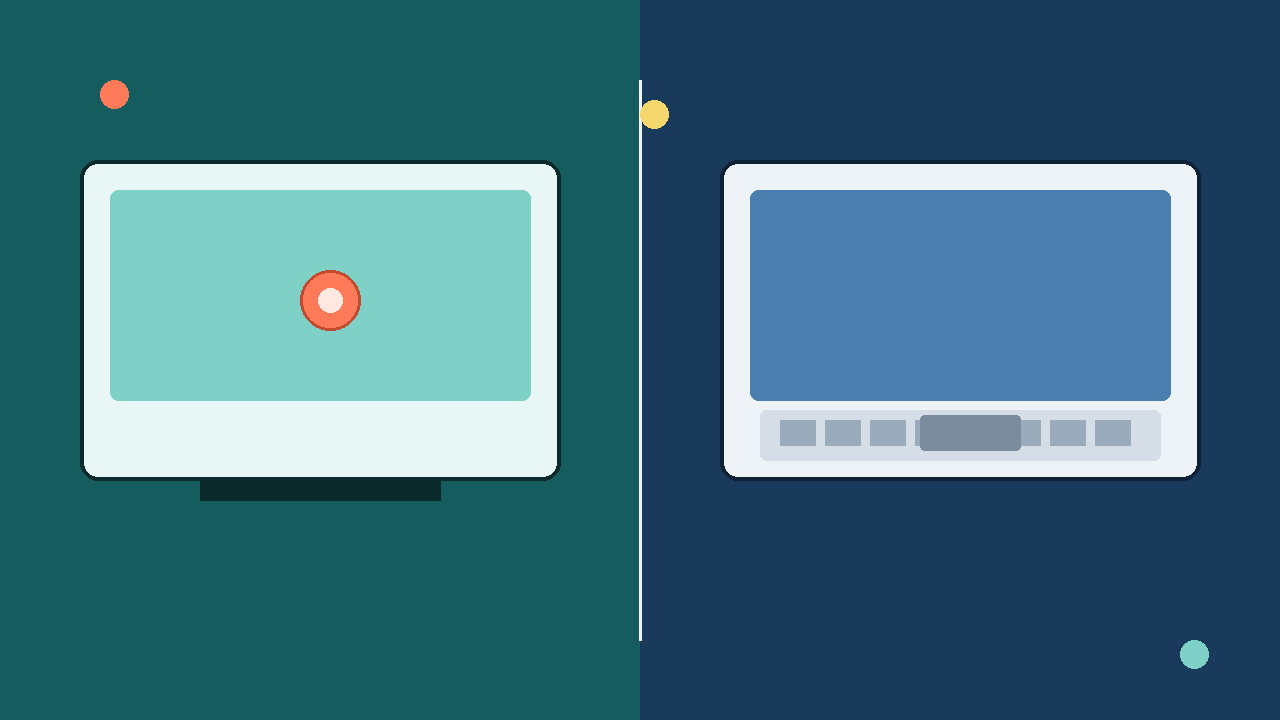
Short answer for most Indian campus weeks: buy a non-touchscreen laptop unless you already know you will annotate PDFs with a finger or stylus every day, or you need a 2-in-1 that folds into tablet mode for drawing or note demos. Touch adds cost, weight, and battery use for many models. It does not replace a good keyboard, enough RAM, or a reliable SSD—and those three decide whether your laptop survives a degree.
Non-touch panels are the default on most student ultraportables and gaming-adjacent machines. You navigate with the keyboard and trackpad (or an external mouse). The screen is usually lighter, slightly thinner, and easier to keep fingerprint-free because you are not pressing glass all day.
Neither choice makes Windows “smarter.” Touch only helps if your habits involve frequent on-screen tapping. If you mostly type essays, code, and fill LMS forms, you will rarely miss it.
Cost, weight, and battery trade-offs students feel
Touchscreens cost more at the same CPU and RAM
Battery impact varies by model, but brighter touch panels and more glass often push users to raise brightness, and some touch layers draw a little more power. Exact numbers depend on the laptop—check independent battery reviews for the SKU you are buying, not marketing slides. Treat touch as a comfort feature that should not force you into a weaker battery class.
Study tasks where touch helps (and where it does not)
Touch shines when you:
- Zoom and pan large diagrams, architecture dra
- Write long answers, code labs, or documentation for hours
- Live inside Excel sheets, IDEs, and browser tabs with dozens of fields
- Prefer precise cursor control for design tools that assume a mouse
- Share the laptop in a crowded canteen where fingerprints and smudges annoy everyone
Students in design, architecture, fine arts, or heavy PDF markup courses have a clearer case for touch or stylus support. Pure CS, commerce, and theory-heavy streams usually do not.
2-in-1 convertibles versus plain touch clamshells
Not every touchscreen is a tablet. A standard clamshell with touch still opens like a normal laptop; you just can poke the screen. A 2-in-1 (3
If you never plan to fold the laptop, paying for a convertible hinge is wasted money. Buy a solid non-touch clamshell or a simple touch clamshell only if finger zoom is a weekly habit.
Durability, smudges, and classroom reality
Touch glass invites fingerprints, oil, and dust. Under bright classroom lights those smudges sit on top of your notes. Non-touch matte panels stay cleaner because hands stay on the keyboard deck.
Accidental taps on a touchscreen can switch windows mid-exam practice. You can disable touch in Windows if it becomes noise—another sign that many buyers never needed it.
For durability, hinge quality matters more than touch. A cheap convertible that wobbles after one semester is worse than a firm non-touch lid. Press the screen gently in the store; it should not flex alarmingly.
Buying checklist without showroom fog
When two models sit side by side:
- Prefer non-touch if the same money buys 16 GB RAM instead of 8 GB, or a larger SSD
- Prefer touch only if PDF annotation or stylus work is part of your weekly course load
- Prefer a 2-in-1 only if tablet posture is real for you, not a demo novelty
- Confirm display brightness and finish (matte vs glossy) separately from touch—touch does not fix glare
- Ignore “touch means premium” marketing; premium is cooling, keyboard, battery, and support
In Indian retail listings, twins in a series often differ only by touch. Read the full display line. Ask to open a PDF and a typing app on both. If you never reach for the screen during five minutes of real work, you will not miss touch after purchase.
A practical recommendation for most students
Choose non-touch when your week looks like lectures, coding, typed assignments, LMS uploads, and browser research. That covers the majority of undergraduate workloads. Put the savings into RAM, storage, and a charger you will actually carry.
Choose touch when you already annotate heavily, present from the screen often, or need a convertible for handwriting-heavy subjects. Then verify stylus support and hinge feel before paying.
If you are unsure, default to non-touch. You can always use a cheap graphics tablet later for occasional drawing. You cannot easily add RAM to every thin laptop after the sticker is peeled.
Closing thought
Touchscreen vs non-touchscreen is a habit decision, not a status badge. Walk through a normal Tuesday—notes, labs, bus rides—and ask how often your finger would replace the trackpad. For most students the honest answer is almost never, so a clear non-touch panel on a balanced machine beats a flashy touch model that skimps on memory.
If you want stylus notes, confirm the model supports an active pen and that the pen is included or affordable separately. A touchscreen without a pen still lets you tap, but handwriting feels worse with a finger alone.
wings, or map-heavy geography PDFs - Present slides and casually swipe while standing
- Annotate readings with a stylus on a 2-in-1 if handwriting is part of how you learn
- Use occasional on-screen buttons in creative apps when a mouse feels clumsy
Touch rarely helps when you:
tier. That money often buys less storage or slower memory if you stretch a festival-sale budget. For a fresher buying one machine for three or four years, swapping touch for 16 GB RAM or a larger SSD is usually the wiser trade.Touch glass and digitizers add grams. On a machine you carry between hostels, labs, and buses, those grams stack with a charger brick. Convertible hinges can also feel heavier than a simple clamshell.
What a touchscreen laptop actually adds
A touchscreen lets you tap icons, pinch to zoom maps and PDFs, swipe through slides, and—on convertible models—flip the lid into tablet-like postures. Some units support an active stylus for handwriting and sketching. Everyday Windows still works with a trackpad and keyboard; touch is an extra input path, not a different operating system.